What you’ll learn
- How the Subtitles tab follows the active Timeline.
- How OCAP, CCAP, and Sign Language content are previewed.
- How to unlock a subtitle track for editing.
- How to add and delete subtitle cues.
- How to change the font and styling for the active subtitle track.
- How to offset or convert subtitle timing.
- How to export subtitle tracks as XML or SRT.
The Subtitles tab
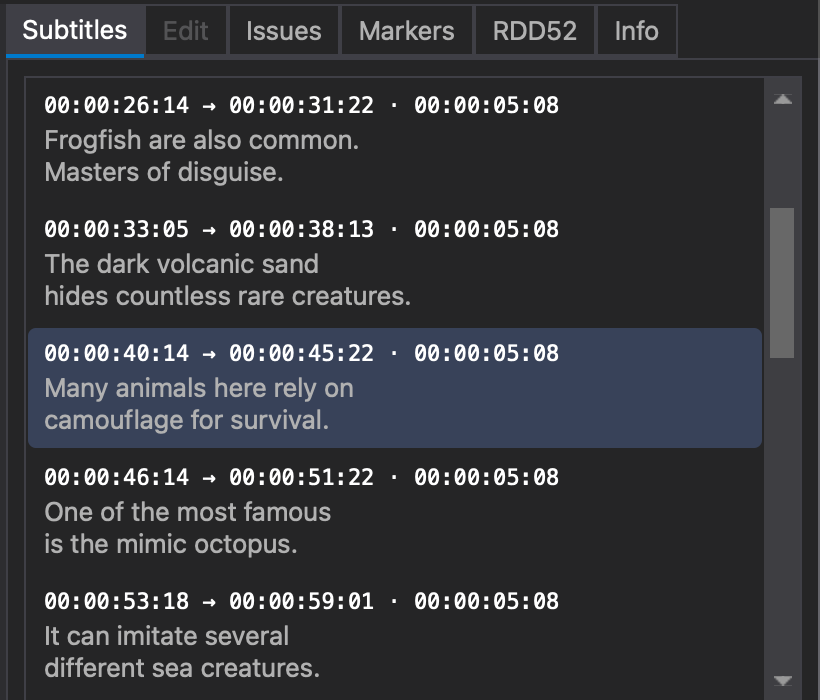
The Subtitles tab displays all subtitles in the active Timeline.
Subtitles are shown in a list, which makes it possible to review the full track while working with the current Timeline.
Playback synchronization
The subtitle list is automatically synchronized with playback.
During playback, the currently active subtitle is highlighted in the list.
This makes it easy to follow the subtitle sequence while checking timing and presentation against the picture.
Review OCAP and CCAP simultaneously
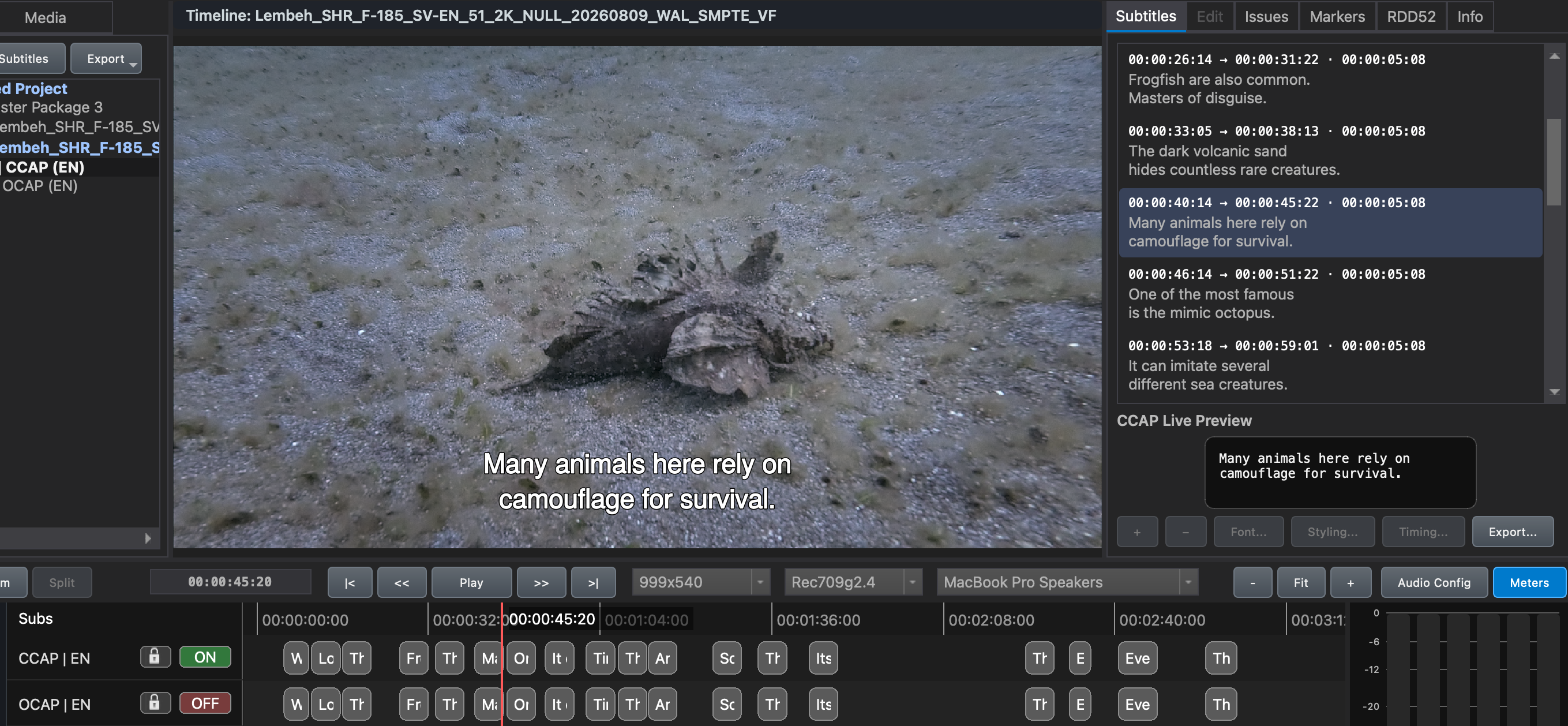
If the Timeline contains both OCAP and CCAP subtitles, DaCaPo allows both tracks to be reviewed at the same time.
- OCAP subtitles are displayed in the Viewer.
- CCAP subtitles are displayed in the CCAP Live Preview area at the bottom.
This makes it possible to check the open-caption presentation and the closed-caption content during the same playback pass.
Review Sign Language video
If the Timeline contains a Sign Language track, a Sign Language Preview is also displayed.
This allows the Sign Language video to be reviewed during playback together with the subtitle content.
Unlock the subtitle track
Subtitle editing is available when the subtitle track is unlocked using the lock button in the Timeline header.
When the track is locked, the subtitle list can still be reviewed, but the editing controls are not available.
Add or delete subtitles
Add Subtitle (+)
Add Subtitle (+) creates a new subtitle at the current playhead position.
Delete Subtitle (-)
Delete Subtitle (-) deletes the selected subtitle or subtitles.
Edit subtitle cues in the Timeline
Subtitle tracks must be unlocked before subtitle cues can be edited directly in the Timeline.
When the track is unlocked, one or more subtitle cues can be selected directly in the Timeline.
DaCaPo supports:
- Single selection
- Marquee selection
- Shift-select
- Ctrl/Cmd-select
Move subtitle cues
Drag a selected subtitle cue along the Timeline to move it earlier or later.
Multiple selected cues can be moved together while preserving their relative timing.
Hold Shift while dragging to snap the selected cue or cues to the current playhead position. This is useful when subtitles need to be aligned precisely to a known picture or audio position.
Adjust the start or end time
Drag the in-point or out-point of a subtitle cue to adjust its start or end time.
This changes the cue duration without moving the complete subtitle event.
Edit the selected cue in the Inspector
Selecting a subtitle cue in the Timeline automatically makes it the active cue in the Subtitles and Edit Inspector tabs.
You can then edit its text, styling, and timing information without having to select the cue again.
Change the track font
Choose Font… to change the font used by all subtitle elements in the active subtitle track.
After changing the font, review representative subtitles throughout the Timeline because a different typeface can affect line length and wrapping.
Style the subtitle track
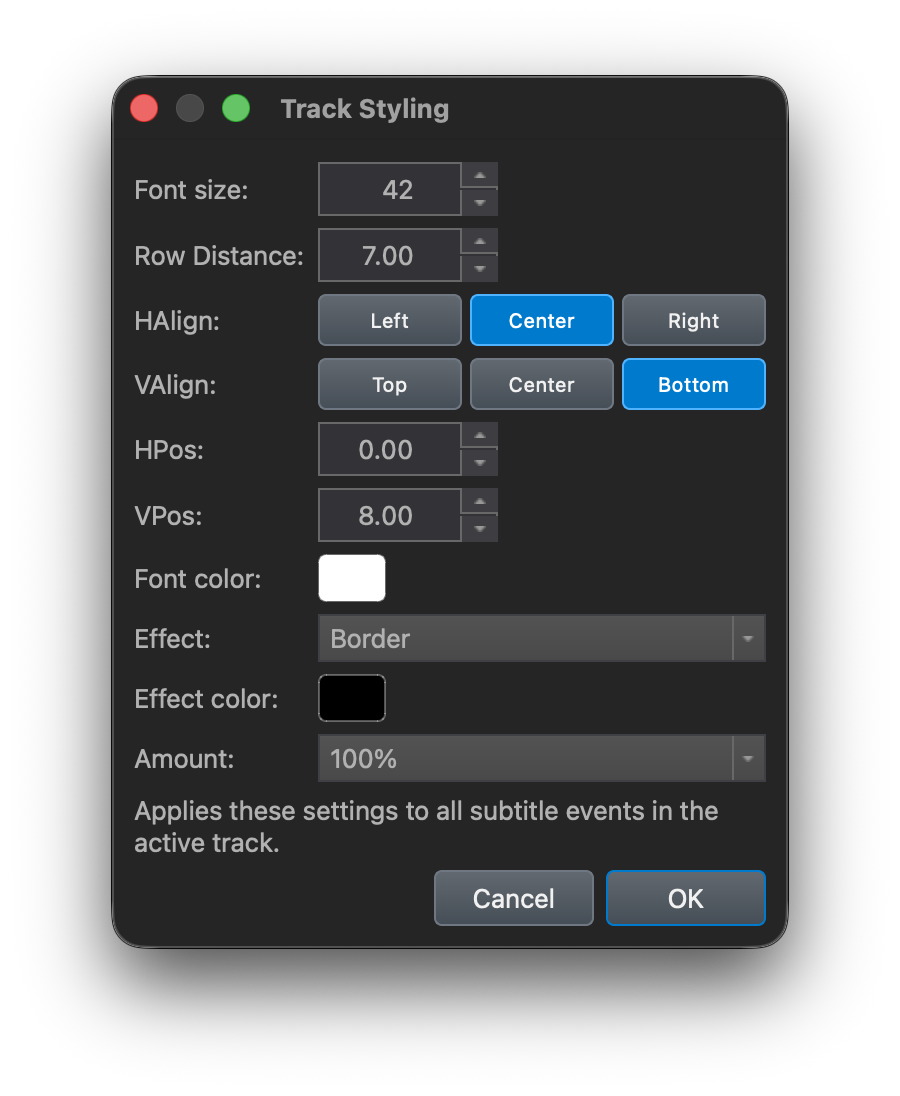
Choose Styling… to change the visual appearance of the active subtitle track.
The available styling controls include:
- Font Size
- Font color
- Row Distance
- Effect type
- Alignment
- Effect color
- Position
- Effect strength
These settings apply to the active subtitle track and are useful when adjusting imported subtitle material for cinema presentation.
Adjust subtitle timing
Choose Timing… to adjust timing for the entire active subtitle track.
Typical uses include:
- Offsetting all subtitles by a fixed TC amount.
- Converting subtitle timing between 24 fps and 25 fps.
Use the timing tools when the complete subtitle track needs a consistent adjustment rather than editing individual cues one by one.
Export subtitles
Choose Export… to export the active subtitle track as XML or SRT.
Subtitles can be exported as:
- A single file covering the entire composition (Timeline).
- Separate files for each reel.
This is useful when subtitle material needs to be delivered separately, reviewed externally, or reused in another workflow.
Edit individual subtitles in the Subtitle Editor
The Subtitles tab provides track-level tools, while detailed editing of the selected subtitle is handled in the Edit tab.
Use the Edit tab when you need to change subtitle text, row properties, or the order of individual text rows.
Common questions
Why are the editing controls unavailable?
Check that the subtitle track is unlocked using the lock button in the Timeline header.
Why do I see OCAP in the Viewer but CCAP somewhere else?
OCAP is displayed in the Viewer, while CCAP is shown in the CCAP Live Preview area at the bottom.
How do I change all subtitle timings at once?
Use Timing… to offset the complete track or convert timing between supported frame rates.
How do I edit the text of a single subtitle?
Select the subtitle and use the Edit tab in the Subtitle Editor.