What you’ll learn
- Why subtitle frame rate matters.
- How DaCaPo detects frame-rate differences during XML import.
- The difference between Import anyway and Convert subtitle timing.
- When changing only the frame-rate tag is the correct choice.
- How to convert an existing subtitle track using Timing…
- What to review after conversion.
Why subtitle frame rate matters
Subtitle events are timed against a frame rate. If the timing basis of a subtitle file does not match the Timeline, the subtitles may no longer appear at the intended moments.
This does not always mean that the subtitle events themselves need to be retimed. Sometimes the subtitle file contains correct timecodes but has simply been tagged with the wrong frame rate.
DaCaPo therefore distinguishes between changing the frame-rate tag and actually converting the subtitle timing.
Two ways to handle subtitle frame rates
DaCaPo provides frame-rate handling in two parts of the subtitle workflow.
During XML subtitle import
When XML subtitles are imported, DaCaPo compares the subtitle frame rate with the frame rate of the current Timeline.
If they do not match, DaCaPo displays a dialog before completing the import.
For an existing subtitle track
An existing subtitle track can also be retimed using Timing… in the Subtitles tab.
Frame-rate conversion during XML import
Import the XML subtitle file using Load Subtitles.
DaCaPo compares the frame rate stored in the subtitle file with the frame rate of the current Timeline.
If the frame rates match, the normal subtitle import continues.
If they do not match, DaCaPo displays a dialog with two choices:
- Import anyway
- Convert the subtitle timing
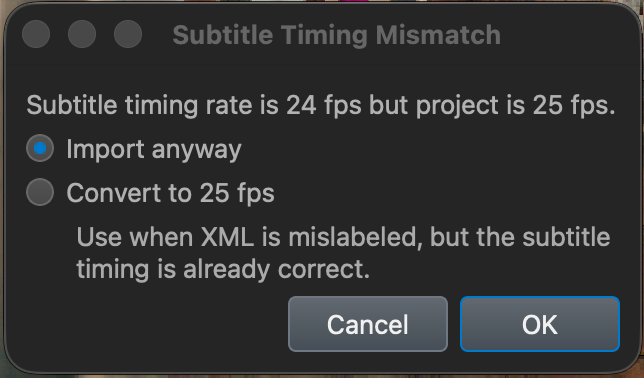
Import anyway — change the frame-rate tag only
Choose Import anyway when the subtitle timecodes are already correct for the Timeline but the frame-rate information stored in the subtitle file is wrong.
DaCaPo changes the subtitle frame-rate tag but leaves all subtitle timecodes unchanged.
Example
A subtitle file may be tagged as 24 fps even though its timecodes were actually authored for 25 fps.
If the Timeline is 25 fps, retiming those subtitle events would make them incorrect. In this case, changing only the tag produces the intended result.
Convert the subtitle timing during import
Choose Convert the subtitle timing when the subtitles were genuinely authored for a different frame rate from the current Timeline.
DaCaPo retimes all subtitle events to match the current Timeline.
Fade durations are converted as well.
The conversion is performed as part of the import and does not modify the original subtitle file.
Which option should I use?
Use Import anyway when:
- The subtitle timecodes already align correctly with the Timeline.
- The originating application stored the wrong frame-rate tag.
- You want to change the declared frame rate without retiming cues.
Use Convert the subtitle timing when:
- The subtitles were genuinely authored at another frame rate.
- The subtitle events need to be retimed for the current Timeline.
- Fade durations also need to follow the new timing basis.
Convert an existing subtitle track
Subtitle timing can also be adjusted after the subtitles have been imported.
Open the Subtitles tab and unlock the subtitle track using the lock button in the Timeline header.
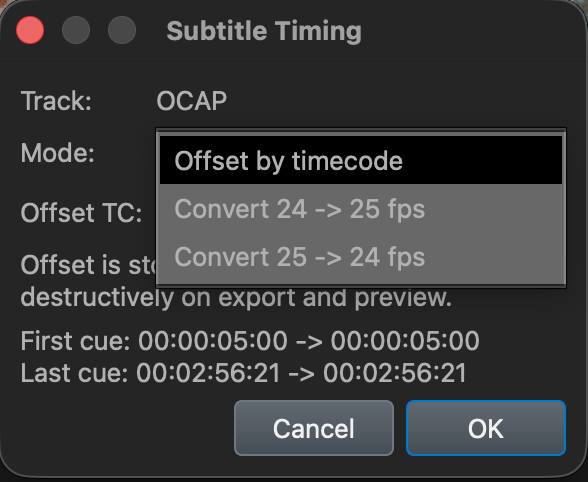
Choose Timing… for the active subtitle track.
The Timing controls can be used for track-wide timing operations, including:
- Offsetting subtitles by a fixed TC amount.
- Converting subtitle timing between 24 fps and 25 fps.
The operation is applied to the complete active subtitle track.
Review the converted subtitles
After changing or converting subtitle timing, review the result against picture and dialogue.
Check representative sections at the beginning, middle, and end of the Timeline.
Pay particular attention to:
- Subtitle appearance relative to dialogue.
- Subtitle disappearance.
- Short-duration cues.
- Closely spaced subtitles.
- Fade timing.
- Subtitle events near reel boundaries.
Common problems
The subtitle file says 24 fps, but it already matches my 25 fps picture
The file may simply have been tagged incorrectly. During XML import, choose Import anyway to change the frame-rate tag while leaving the subtitle timecodes unchanged.
The subtitles gradually move out of sync
The subtitle timing may have been authored for a different frame rate. Import the original file again and choose Convert the subtitle timing, or use Timing… on an existing subtitle track when appropriate.
I chose conversion, but the subtitles are now wrong
The original timecodes may already have been correct for the Timeline and only the frame-rate tag was wrong. Reimport the original XML and choose Import anyway.
I do not get a frame-rate warning during import
DaCaPo displays the mismatch dialog when importing XML subtitles whose frame rate differs from the current Timeline frame rate.
I need to move every subtitle by the same amount
Use Timing… in the Subtitles tab to offset the active subtitle track by a fixed TC amount.