What you’ll learn
- How to edit the currently selected subtitle.
- How to format selected text.
- How to split one text row into two rows.
- How to change properties for individual rows.
- How to reorder subtitle rows.
- How to add and remove text rows.
- How CCAP editing differs from OCAP editing.
The Edit tab
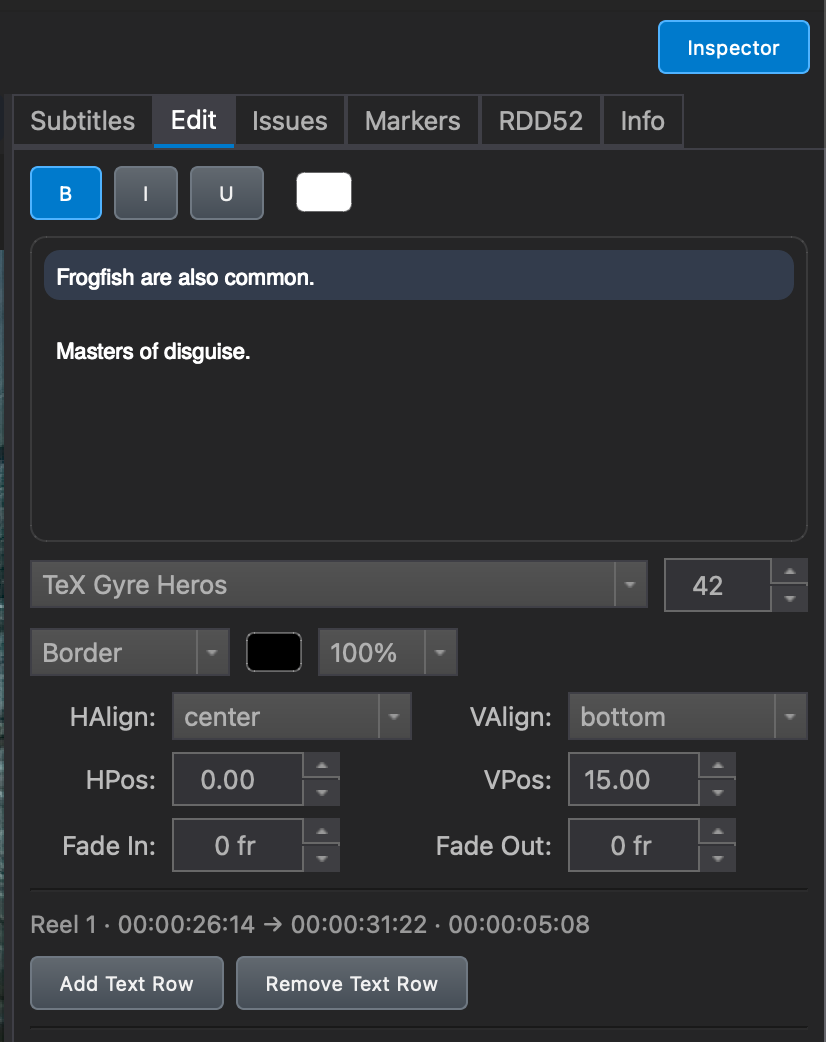
The Edit tab is used to edit the currently selected subtitle.
The subtitle is displayed as individual text rows, allowing the content and properties of each row to be edited separately.
Unlock the subtitle track
The subtitle track must be unlocked before editing is possible.
Use the lock button in the Timeline header to unlock the active subtitle track.
Edit subtitle text
Select the subtitle you want to edit.
The selected subtitle is displayed as individual text rows in the Edit tab.
Click inside a row to edit its text.
Review spelling, punctuation, dialogue dashes, and line breaks while making changes.
Format selected text
Selected text can be formatted using:
- Bold
- Italic
- Underline
- Text Color
Formatting can be applied to selected text without changing the complete subtitle track.
Split one text row into two
To split a row into two rows, place the insertion point where the new row should begin and press:
Shift + Return
This is useful when a subtitle needs to be divided into separate display rows without creating a new subtitle event.
Change row properties
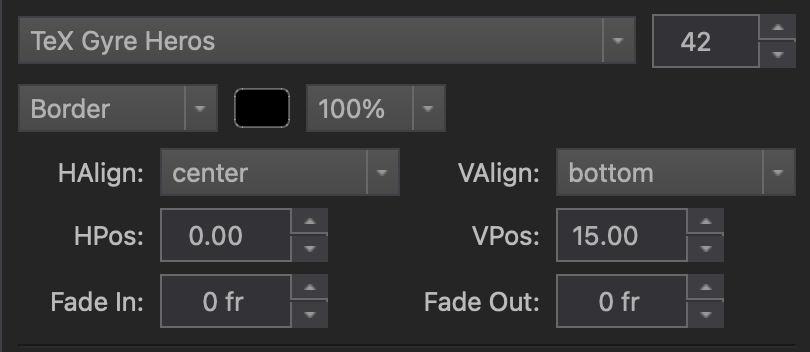
Each subtitle row can have its own properties.
Row properties include:
- Font
- Text effect
- Alignment
- Positioning
This allows different rows within the same subtitle to be styled independently.
Change the row order
Rows can be reordered by dragging them up or down in the list.
The order of the rows determines how they are displayed on screen.
After reordering rows, review the subtitle in the Viewer to confirm that the presentation is correct.
Add and remove text rows
The buttons at the bottom of the Edit tab can be used to:
- Add a new text row.
- Remove the selected text row.
Use these controls when a subtitle needs additional lines or when an existing row is no longer required.
CCAP editing
When editing a CCAP track, a live CCAP Preview is displayed at the bottom of the tab.
Because CCAP presentation is controlled by the playback device, text styling options are disabled.
The disabled options include:
- Font
- Color
- Effects
- Bold
- Italic
- Underline
Only the subtitle text itself can be edited for CCAP.
Review the edited subtitle
After editing, review the selected subtitle in the Viewer or CCAP Live Preview, depending on the track type.
Check:
- The subtitle text.
- Row order.
- Line breaks.
- Formatting and row properties for OCAP.
- The live CCAP text preview for CCAP.
Return to the Subtitles tab for track-level changes
The Edit tab is used for the currently selected subtitle.
For track-level operations such as adding or deleting subtitle events, changing the complete track font or styling, adjusting timing, or exporting the subtitle track, use the Subtitles tab.
Common questions
Why can I not edit the selected subtitle?
Check that the subtitle track is unlocked using the lock button in the Timeline header.
How do I create another text row?
Use the add-row button at the bottom of the Edit tab, or use Shift + Return to split an existing row at the insertion point.
Why are the font and styling controls disabled?
If you are editing a CCAP track, presentation is controlled by the playback device. Only the subtitle text itself can be edited.
How do I change the timing of the complete subtitle track?
Use Timing… in the Subtitles tab.