What you’ll learn
- Which subtitle formats DaCaPo supports.
- How to add subtitles to an existing DCP.
- How to choose between OCAP and CCAP.
- How to import into the current Timeline or a new Timeline.
- How DaCaPo handles frame-rate differences.
- How to import subtitles beginning at a later reel.
- How to adjust subtitle timecodes that start at one hour.
- How to review the subtitles before export.
Supported subtitle formats
DaCaPo supports the following subtitle formats:
| Format | Typical use |
|---|---|
| DCST / SMPTE XML | Professional SMPTE DCP subtitles |
| Interop XML | Legacy Interop DCP subtitles |
| SMPTE Subtitle MXF | Existing wrapped subtitle assets |
| SRT | General-purpose subtitle files converted during import |
Load the source DCP
Load the DCP that should receive the subtitle track and select the appropriate Timeline.
If the DCP contains several CPLs, make sure the correct Timeline is active before starting the import.
Choose Load Subtitles
Choose Load Subtitles and select the subtitle file you want to import.
DaCaPo detects the subtitle format automatically.
If the subtitle file contains language information, DaCaPo uses it during import. Otherwise, you will be asked to choose the subtitle language.
Importing a Subtitle MXF
When a SMPTE Subtitle MXF is selected, DaCaPo extracts the subtitle data and continues with the normal subtitle-import workflow.
If the Subtitle MXF is encrypted, provide a compatible key, KDM, DKDM,
digest, or .dcpkey file before the subtitles can be imported.
Choose the subtitle role
Choose whether the subtitles should be imported as:
- OCAP — Open Captions: subtitles that are visible as part of the presentation.
- CCAP — Closed Captions: captions that can be enabled or disabled by the playback system.
CCAP is available only for SMPTE DCPs.
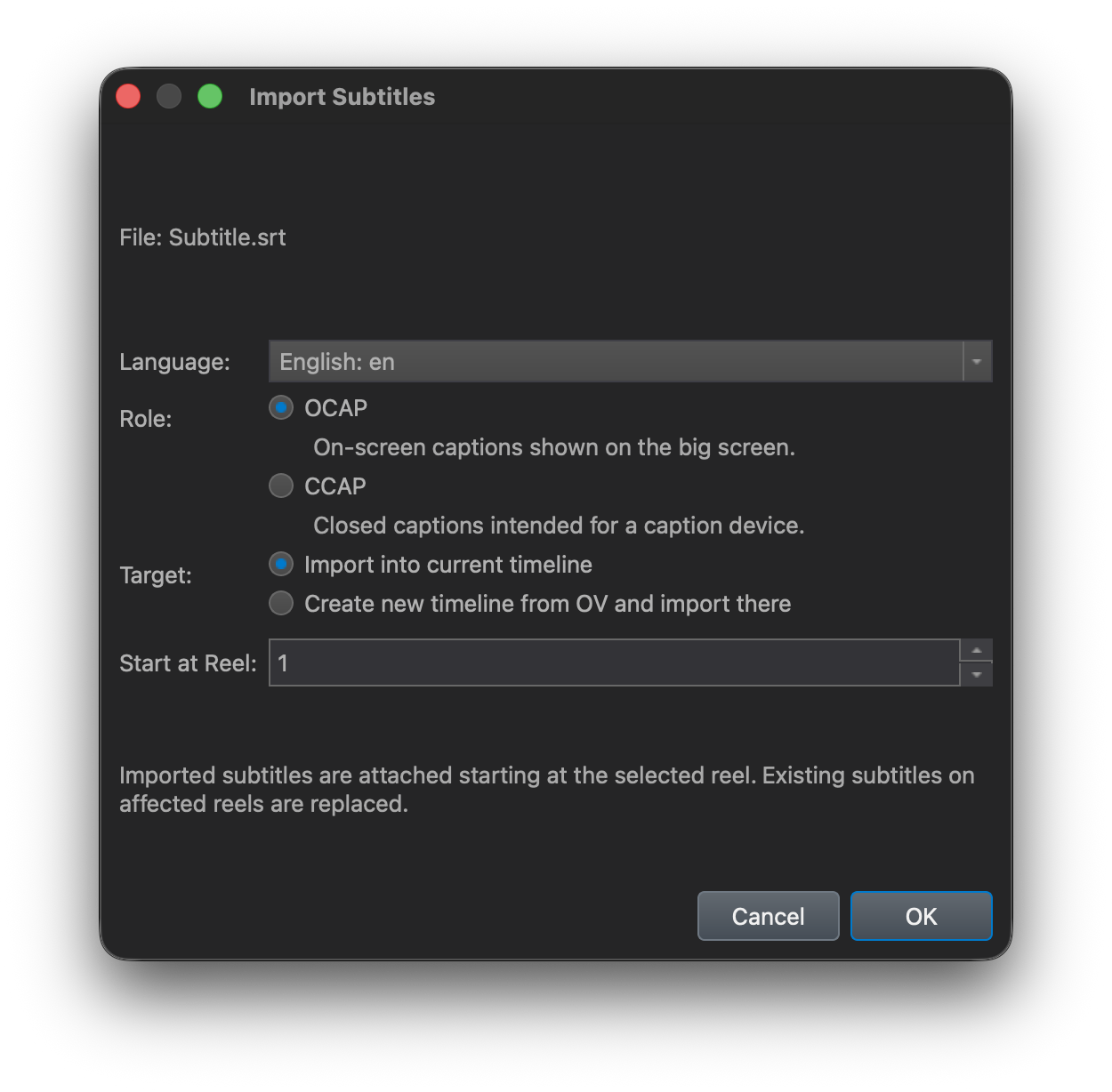
Choose the target Timeline
Subtitles can be imported into:
- The current Timeline
- A new Timeline
When you choose a new Timeline, DaCaPo creates a Virtual Timeline based on the currently selected Timeline and asks you to enter a name.
A new Timeline is normally the preferred choice when preparing a subtitle Version File while preserving the original Timeline.
Resolve subtitle frame-rate differences
When importing XML subtitles, DaCaPo compares the subtitle frame rate with the active Timeline frame rate.
If they do not match, you can choose between two different actions.
Import anyway
Import anyway changes the subtitle frame-rate tag while leaving the subtitle timecodes unchanged.
Use this when the subtitle file has been tagged with the wrong frame rate but the cue times are already correct for the Timeline.
Convert the subtitle timing
Timing conversion retimes subtitle events and fade durations to match the Timeline frame rate.
Use this when the subtitles were actually authored at a different frame rate.
Import subtitles starting at a later reel
Use Start at Reel when the subtitle file belongs to a reel other than Reel 1.
This is useful when importing separate reel-based subtitle files into a multi-reel Timeline.
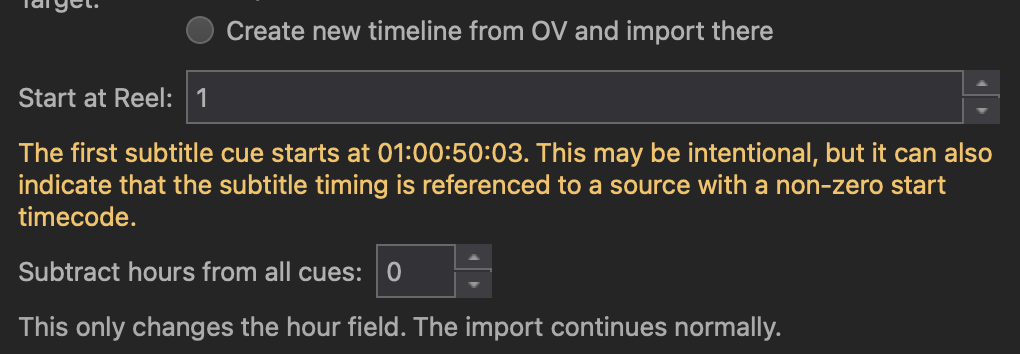
Adjust subtitles that start at one hour
If the first subtitle cue starts at one hour or later, DaCaPo displays an additional timing option.
This commonly occurs when subtitles were authored from source material using a non-zero start timecode.
You can subtract one or more whole hours from every subtitle timecode before import. The original subtitle file is not changed.
If the non-zero start timecode is intentional, leave the option unchanged.
Review the imported subtitles
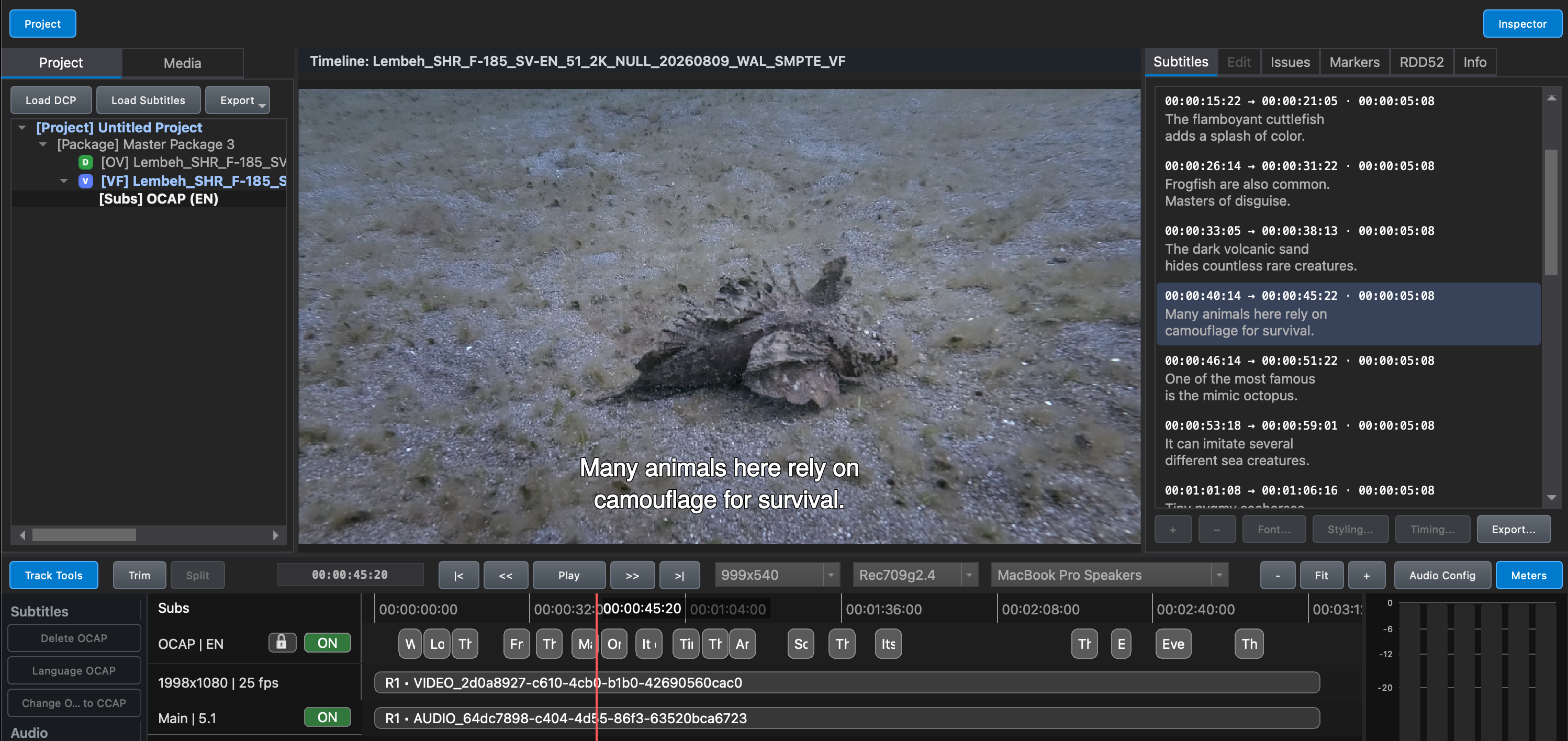
After import, play the Timeline and review the subtitle track in the Viewer, Timeline, and Subtitles tab.
Check:
- Subtitle language
- OCAP or CCAP role
- Timing and synchronization
- Reel boundaries
- Font availability
- Positioning and styling
- Warnings and errors in the Issues tab
If the Timeline contains both OCAP and CCAP, DaCaPo can display OCAP in the Viewer and CCAP in the CCAP Live Preview.
Export the subtitle version
Once the subtitles have been reviewed and all blocking errors have been resolved, export the Timeline as a new DCP.
A subtitle version is commonly exported as a VF so it can reuse the picture and main audio assets from the OV.
Common problems
The subtitle language is wrong
Confirm the language selected during import or the language metadata contained in the subtitle file.
The subtitles are out of sync
Check whether the subtitle frame rate differs from the Timeline frame rate and whether timing conversion was required.
The subtitles begin one hour late
Use the whole-hour subtraction option when the subtitle file was authored from source material with a one-hour start timecode.
The subtitles appear on the wrong reel
Check the Start at Reel setting used during import.
CCAP cannot be selected
CCAP is available only for SMPTE DCPs.