What you’ll learn
- How SRT differs from native DCP subtitle formats.
- Which DaCaPo Preferences affect SRT import.
- How to choose a default font and subtitle styling.
- How two-line dialogue subtitles can be aligned automatically.
- How to import an SRT file into a current or new Timeline.
- What to review after conversion.
What is an SRT file?
SRT is a widely used text subtitle format containing numbered cues, start and end times, and subtitle text.
It is commonly used for video, streaming, review files, and editing workflows, but it does not provide the same cinema-specific presentation information as SMPTE or Interop subtitle XML.
DaCaPo therefore applies default styling and positioning when the SRT file is imported.
Configure the SRT import preferences
Open Preferences and select the Subtitles tab before importing the SRT file.
The settings in this section determine how SRT subtitles are styled when they are converted into a DaCaPo subtitle track.
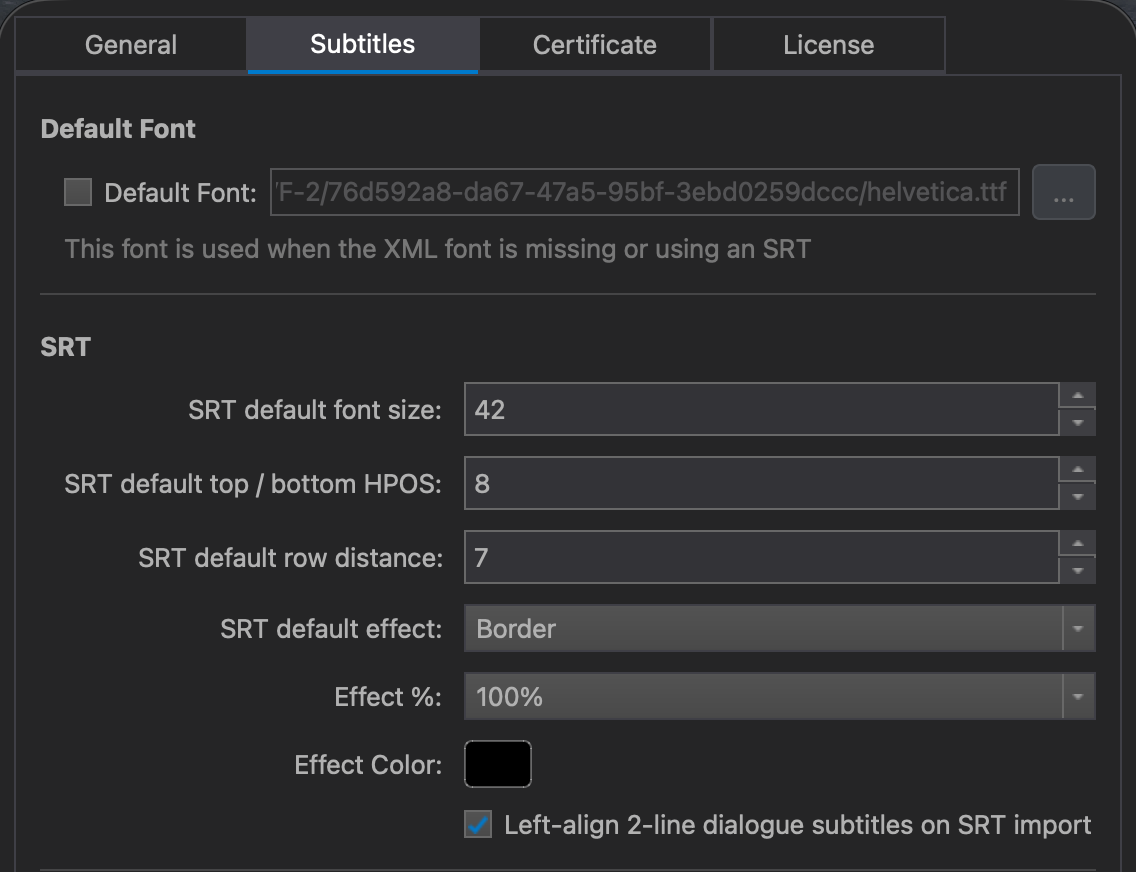
Choose the default font
DaCaPo includes the royalty-free TeX Gyre Heros font by default. It is suitable for Helvetica-style subtitle workflows.
The default font is used when:
- A subtitle file does not specify a font.
- A referenced font cannot be found.
- An SRT file is imported.
Choose a font that is suitable for cinema presentation and verify that it remains readable at the intended size.
Review the SRT defaults
The SRT Defaults section contains the styling settings applied when an SRT file is imported.
These settings include:
- Font size
- Positioning
- Row spacing
- Subtitle effect
- Effect colour
- Effect opacity
These values provide the initial presentation for the imported SRT. They can be adjusted later using the subtitle styling tools.

Left-align two-line dialogue subtitles
DaCaPo can detect SRT cues where both subtitle lines begin with a dialogue dash.
When Left-align 2-line dialogue subtitles on SRT import is enabled, the two lines are aligned to each other and the complete two-line block is positioned so it remains visually centered.
Other SRT cues retain the normal centered alignment.
Load and select the source DCP
Load the DCP that should receive the subtitles and select the correct Timeline.
If you are preparing a new subtitle version, you can import the SRT into a new Virtual Timeline while keeping the original Timeline unchanged.
Import the SRT file
Choose Load Subtitles and select the SRT file.
If the SRT file does not provide language information, DaCaPo asks you to select the subtitle language.
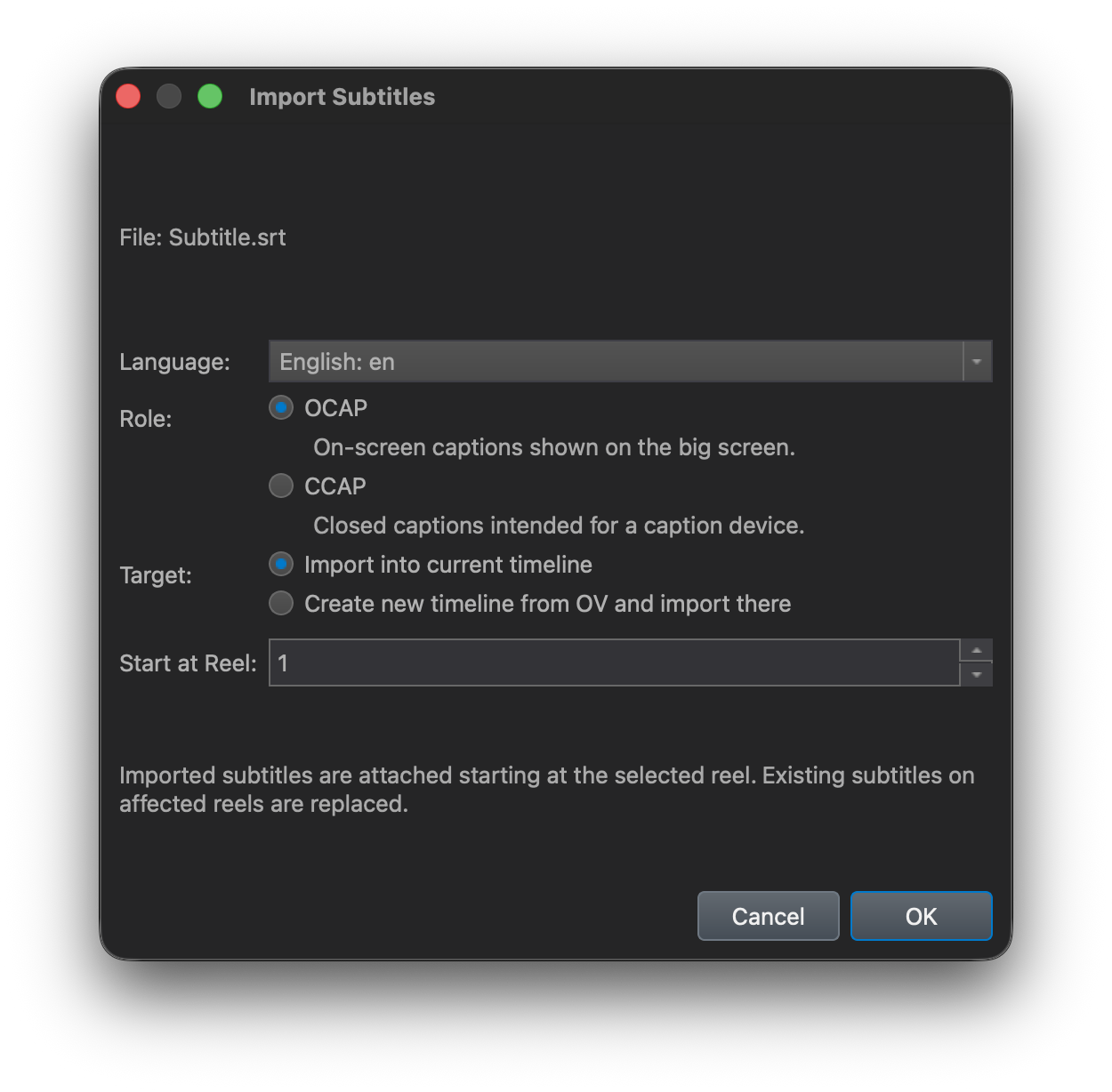
Choose the subtitle role and target
Choose whether the subtitles should be imported as:
- OCAP — Open Captions
- CCAP — Closed Captions
CCAP is available only for SMPTE DCPs.
Then choose whether to import into:
- The current Timeline
- A new Timeline
A new Timeline is normally the preferred choice when preparing a subtitle VF while keeping the existing Timeline unchanged.
Check for a one-hour start timecode
If the first SRT cue starts at one hour or later, DaCaPo offers to subtract one or more whole hours from all subtitle timecodes before import.
Use this when the SRT was created from source material with a non-zero start timecode. Leave the option unchanged if the timecode is intentional.
Review the converted subtitles
Always review an imported SRT before export because the source file contains limited presentation information.
Check:
- Font and font size
- Vertical position
- Row spacing
- Outline or other subtitle effect
- Two-line dialogue alignment
- Line breaks
- Long text rows
- Subtitle timing
- Reel boundaries
- Warnings and errors in the Issues tab
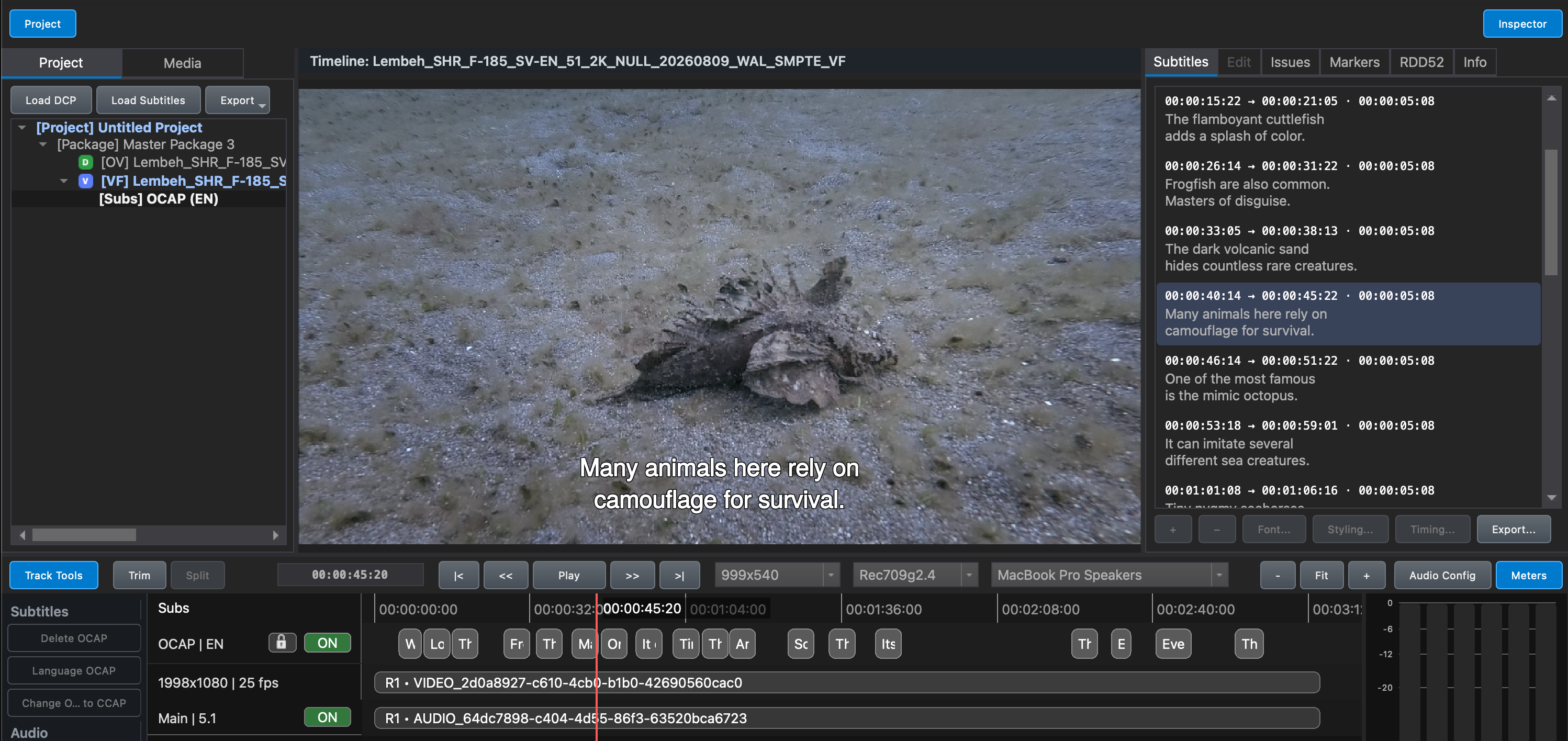
Edit the subtitles when required
Unlock the subtitle track before making changes.
DaCaPo provides two main ways to edit imported subtitles.
- Use the Timeline to work directly with subtitle cues against the picture, including moving cues and adjusting their start and end times.
- Use the Subtitle Editor to edit subtitle text and subtitle-specific presentation settings in more detail.
Export the subtitle version
After reviewing the converted subtitles and resolving all blocking errors, export the Timeline as a new DCP.
A subtitle version is commonly exported as a VF that references the picture and main audio from the original OV.
Common SRT import problems
The font is not what I expected
SRT files do not normally define a cinema subtitle font. Check the Default Font setting in Preferences before import.
The subtitle position is wrong
Review the SRT Defaults positioning setting, then adjust the imported subtitle track if required.
Two-person dialogue is centered incorrectly
Enable Left-align 2-line dialogue subtitles on SRT import before importing the file.
The subtitles begin one hour late
Use the whole-hour subtraction option shown during import when the source timecode starts at one hour.
The text contains unsuitable line breaks
SRT line breaks are preserved during import. Review the cues and edit any line breaks that do not work well for cinema presentation.