What you'll learn
- Load an existing OV.
- Create a new Timeline for the changes.
- Import subtitles.
- Export the Timeline as a Version File.
- Verify and deliver the completed VF.
What is a Version File?
A Version File is a DCP composition that reuses compatible assets from an existing Original Version while introducing only the assets that have changed.
Typical Version Files contain new subtitle tracks, accessibility content, replacement audio, or corrected picture for one or more reels.
For a detailed explanation of OV/VF relationships, see Understanding Original Versions and Version Files.
Before you begin
- Load the Original Version into DaCaPo.
- Make sure the OV is complete and online.
- Prepare the subtitle file.
- Decide whether the VF should be encrypted.
Load the Original Version
Load the existing DCP using Load DCP. DaCaPo analyses the package and creates Timelines representing the compositions found in the DCP.
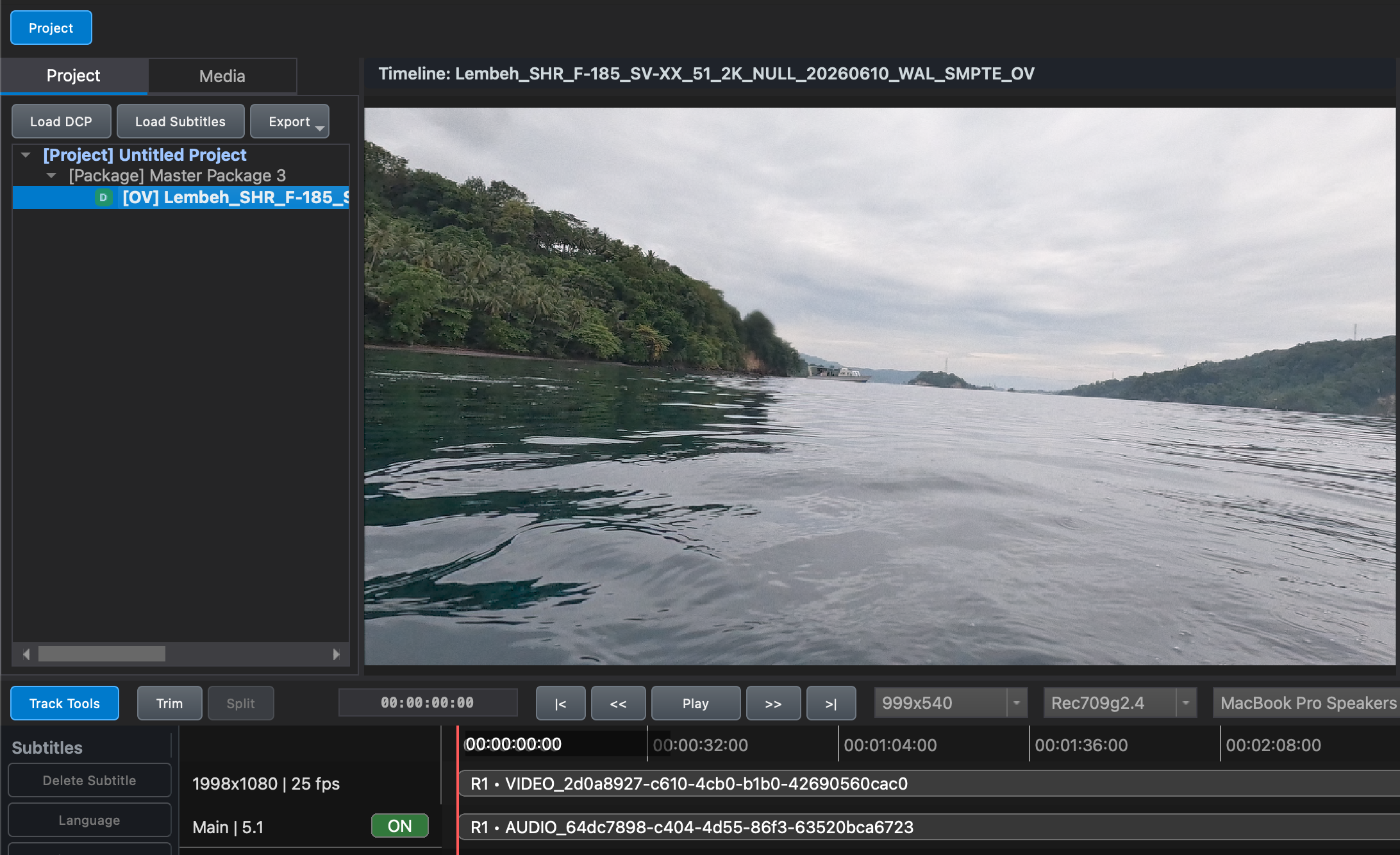
Import the subtitle file
Choose Load Subtitle and select the subtitle file you want to add.
During the import, choose to create a New Timeline. This keeps the original OV Timeline unchanged while creating a new Timeline that contains the additional subtitle track.
This workflow can be used with SMPTE XML, Interop XML, Subtitle MXF, and SRT subtitle files.
Create the new Timeline
The new Timeline initially reuses all picture and audio from the OV. Only the new subtitle track differs.
At this stage the Timeline is still a DaCaPo project Timeline. It does not become a Version File until it is exported.
Review the Timeline
Before exporting:
- Play the Timeline.
- Check subtitle timing.
- Confirm subtitle language.
- Resolve any warnings or errors.
- Confirm the correct OV relationship.
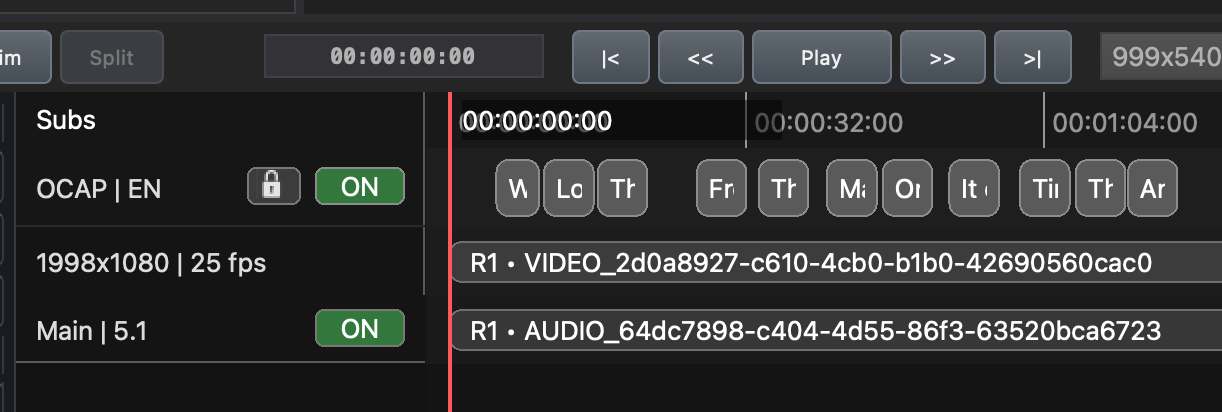
Export the Version File
Open Export DCP and choose Version File (VF). Complete the Title Helper and choose the destination.
DaCaPo analyses the Timeline and reuses compatible OV assets whenever possible. Only the subtitle asset and new composition metadata are written into the VF.
What happens after export?
After export DaCaPo automatically imports the newly created VF into the current project.
If the VF belongs to an existing Package, it is added next to its Original Version. Otherwise DaCaPo creates a new Package.
Verify the Version File
Run verification before delivery. Verify After Export can perform this automatically.
Review all errors and warnings before approving the delivery.
Delivering the Version File
A dependent VF normally requires the recipient to have the corresponding OV. Deliver the OV and VF together unless you know the receiving cinema already has the correct Original Version.
Common problems
The VF option is unavailable
The Timeline may no longer be compatible with the loaded OV.
The exported VF is almost as large as the OV
Changed picture or audio may require new assets rather than references.
The cinema cannot play the VF
Confirm the correct OV has been delivered or is already installed.
The subtitle language is incorrect
Review the language metadata before exporting.