What you’ll learn
- How to prepare a Timeline for export.
- When to export an Original Version or a Version File.
- How the package profile affects asset reuse.
- When to use Force reWrap for an OV.
- How to review the generated DCP name.
- How to export an encrypted or unencrypted OV.
- How to verify the completed package before delivery.
Before you begin
Select the Timeline you want to export and review it from beginning to end. Confirm that the picture, audio, subtitles, captions, markers, and metadata are correct.
The Timeline must be online and must not contain errors that block export. Open the Issues tab and resolve any blocking problems before continuing.
If you intend to create a VF, the required OV assets must be available and compatible with the selected export profile.
Open Export DCP
Select the Timeline you want to export, then open the Export DCP window.
The export controls use the currently selected Timeline as the source for the new package.
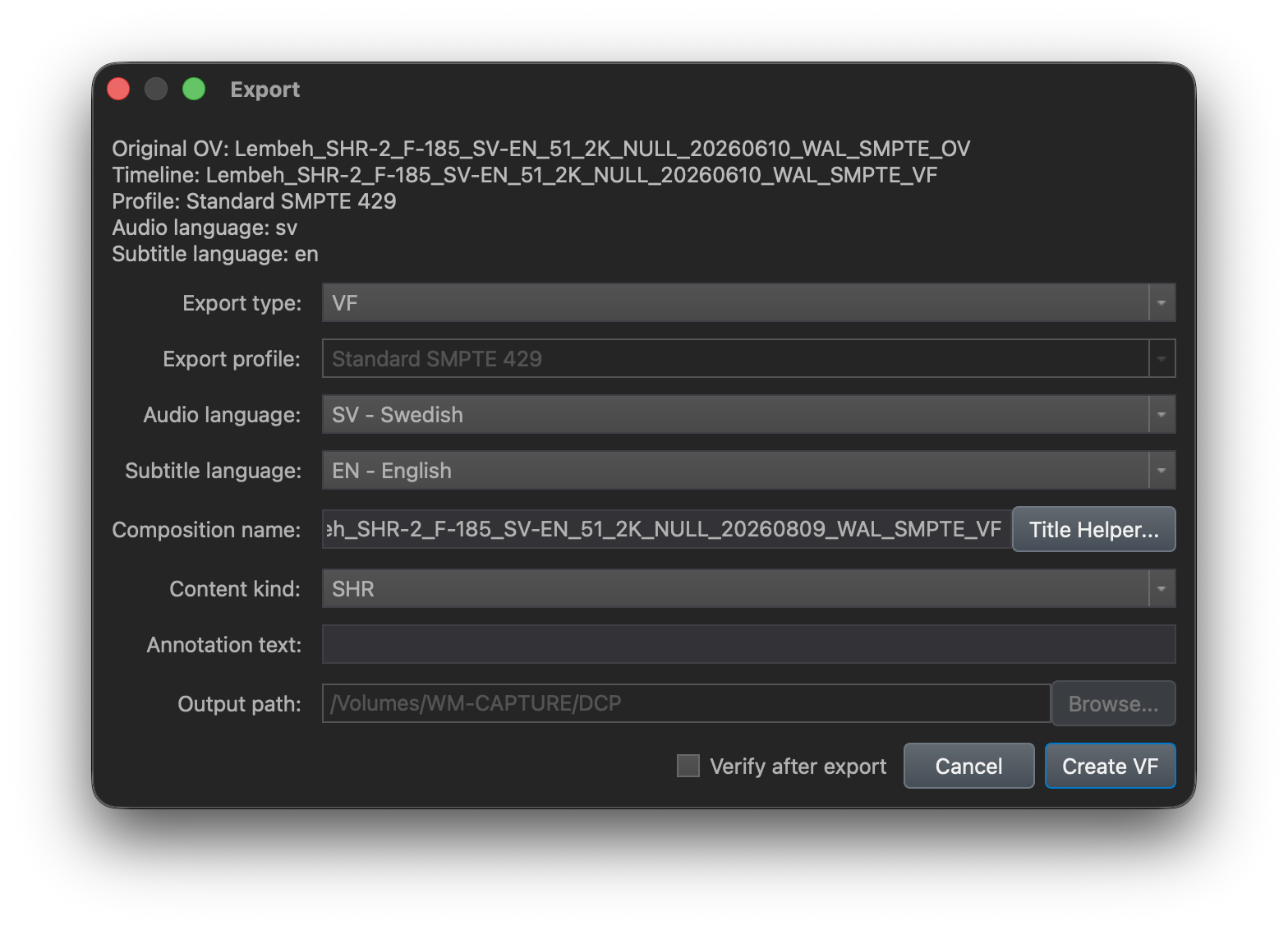
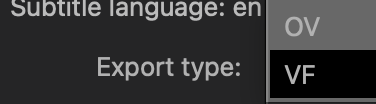
Choose Original Version or Version File
Original Version
Choose OV when the exported DCP must be standalone. The package includes all assets required by its composition and does not depend on another DCP.
An OV is normally used when:
- Creating the first master DCP.
- The recipient does not already have the required OV.
- The delivery specification requires a complete package.
- The package profile changes and source assets must be rewrapped.
Version File
Choose VF when the new version can reuse compatible assets from an existing OV.
A VF is commonly used for:
- Subtitle and caption versions.
- Alternative-language audio.
- HI and VI-N accessibility versions.
- Replacement picture or audio.
- Corrections affecting only part of the DCP.
DaCaPo includes the new or modified assets and references compatible assets from the OV.
Review the package profile
Confirm whether the exported package should use the SMPTE or Interop profile.
A VF can reference source assets only when they are compatible with the target package profile. If the profile changes, DaCaPo must create a new OV and rewrap the required essence.
Force reWrap
Force reWrap is available when exporting an Original Version (OV).
It can be used to recreate the picture, audio, and Atmos MXF files even when a profile rewrap is not required.
This is useful when creating a completely new package with freshly written MXF containers instead of reusing the original assets by copy or hard link.
Because all selected essence files must be written again, enabling Force reWrap increases export time and requires additional disk space.
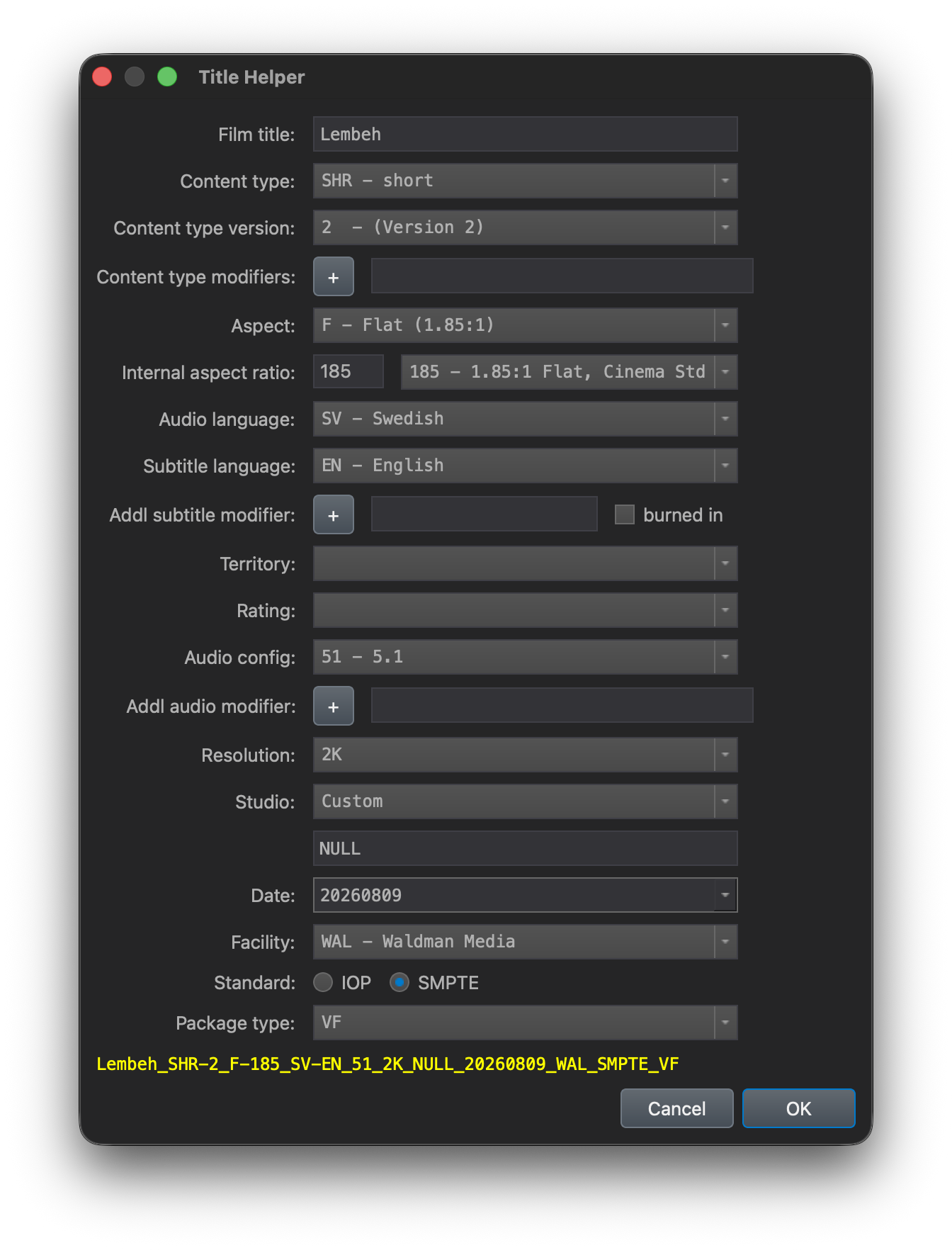
Review the DCP name in the Title Helper
DaCaPo uses the Title Helper to generate an ISDCF-compliant package name.
Review the content type, aspect ratio, audio configuration, language, resolution, version information, and other applicable tokens.
The generated package name updates live as the fields are changed.
Configure encryption
Encryption can be selected when exporting an Original Version (OV).
Unencrypted OV
An unencrypted DCP can be played by compatible cinema systems without a KDM.
Encrypted OV
When encryption is enabled, DaCaPo creates an encrypted OV.
The encrypted DCP requires a compatible KDM or DKDM before its encrypted assets can be opened.
Choose the destination
Select the folder where the new DCP should be created.
Make sure the destination has enough free space and is suitable for sustained media writing.
DaCaPo creates the DCP folder inside the selected destination using the approved package name.
Review the export settings
Before starting the export, confirm:
- The correct Timeline is selected.
- OV or VF is appropriate for the delivery.
- The package profile is correct.
- For an OV, Force reWrap is enabled only if required.
- The generated DCP name is correct.
- For an OV, encryption is enabled or disabled as intended.
- The destination folder is correct.
- No blocking errors remain.
Start the export
Start the export after all settings have been reviewed.
DaCaPo creates the required package metadata and writes or reuses the required picture, audio, subtitle, caption, and auxiliary assets.
Export time depends on the Timeline and the work required. A VF that reuses existing assets can be much faster and smaller than a new OV.
For an OV with Force reWrap enabled, the selected picture, audio, and Atmos MXF files are written again instead of being reused by copy or hard link.
What happens after export?
After a successful export, DaCaPo automatically imports the new DCP into the current project.
If the exported DCP is a VF, DaCaPo adds the new Timeline to the Package containing the related OV.
If the exported DCP does not belong to an existing Package, DaCaPo creates a new Package and adds the exported Timeline there.
The exported DCP also remains available in the destination folder you selected during export.
The package contains the CPL, PKL, AssetMap, and the assets required by the selected OV or VF workflow. A VF may contain only new assets and metadata while continuing to reference compatible assets supplied by its OV.
Verify the exported DCP
Verification should be treated as the final part of the export workflow.
DaCaPo can verify the completed DCP and check its package structure, metadata, assets, hashes, and applicable compliance requirements.
Common problems
Export is blocked
Open the Issues tab and resolve blocking errors. Also confirm that all required source media is online.
The VF option is unavailable
The Timeline may not have a compatible OV relationship, or the selected package profile may require a new OV.
The exported package is larger than expected
Confirm that VF was selected and that compatible OV assets could be reused. An OV includes all required assets and will normally be larger.
If Force reWrap was enabled for an OV, the picture, audio, and Atmos MXF files are recreated instead of being reused by copy or hard link, which also increases the amount of data written.
The recipient cannot play the encrypted DCP
Confirm that a KDM was created for the recipient's exact certificate and that its validity period is active.
The recipient reports missing assets
A dependent VF requires the exact referenced OV. Confirm that both packages were supplied or that the recipient already has the correct OV.
The export completed with warnings
Review every warning before delivery. A warning may not block export, but it can still indicate a compatibility or presentation issue.
The destination does not contain the expected DCP
Confirm the selected destination and generated package name. Also check whether the export was interrupted or the destination became unavailable.