What you’ll learn
- How to select and load a DCP folder.
- What DaCaPo reads from the package.
- How Multi-CPL packages are imported.
- How related OVs and VFs are grouped.
- How encrypted DCPs and decryption keys are handled.
- Why import warnings may differ from verification errors.
Choose Load DCP
In DaCaPo, choose Load DCP and select the root folder of the package you want to import.

Let DaCaPo analyse the package
DaCaPo reads the package’s Composition Playlists, assets, metadata, and relationships to other DCPs.
Based on this information, DaCaPo places the imported DCP in an existing package or creates a new package when necessary.
Review the imported timelines
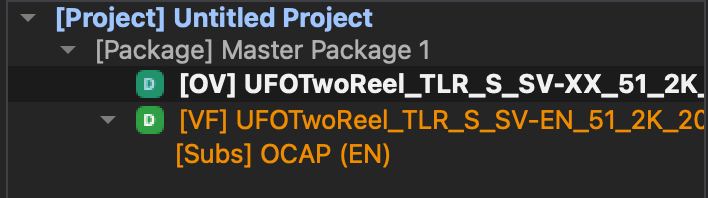
If the DCP contains one CPL, DaCaPo imports it as one timeline.
If the DCP contains multiple CPLs, each CPL is imported as a separate timeline inside the package.
Provide a key if the DCP is encrypted
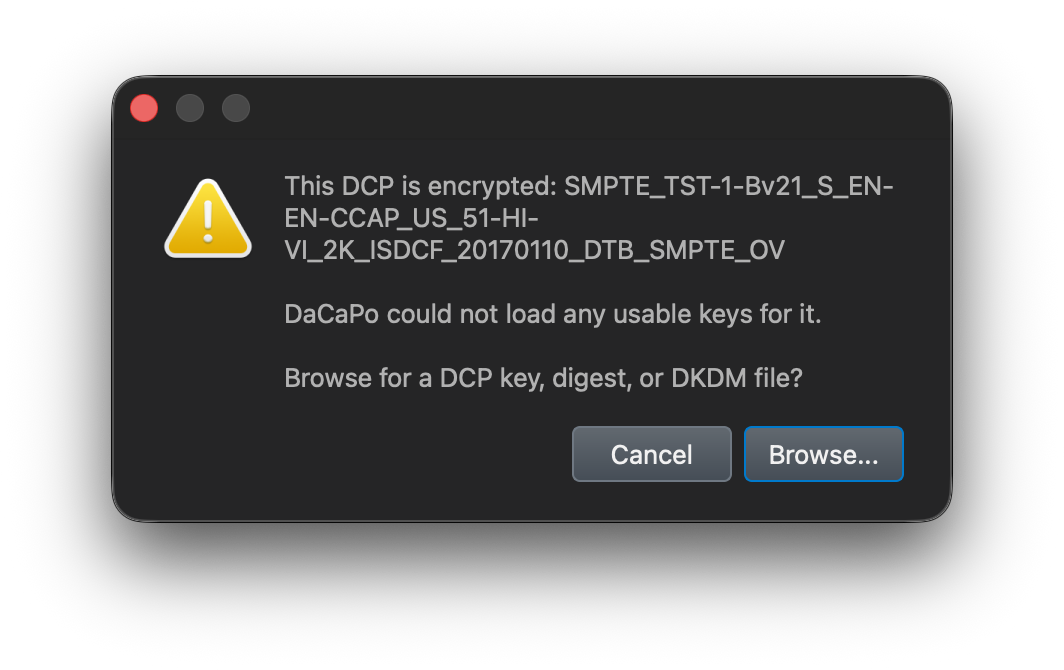
Encrypted DCPs require a valid decryption key before their content can be opened and previewed.
DaCaPo supports common key sources including:
- DaCaPo DCPKey files (
.dcpkey) - KDM files
- DKDM files
- Fraunhofer Digests
- Compatible XML-based key formats
If a matching .dcpkey file is located next to the DCP,
DaCaPo attempts to load it automatically. Otherwise, DaCaPo asks you
to provide a compatible key or certificate file.
How key storage works
Decryption information is stored securely on a per-computer basis. The key information associated with a timeline is encrypted for the local workstation.
If the same project is opened on another computer, a compatible DCPKey, KDM, DKDM, or digest must be supplied again.
Review warnings and status symbols
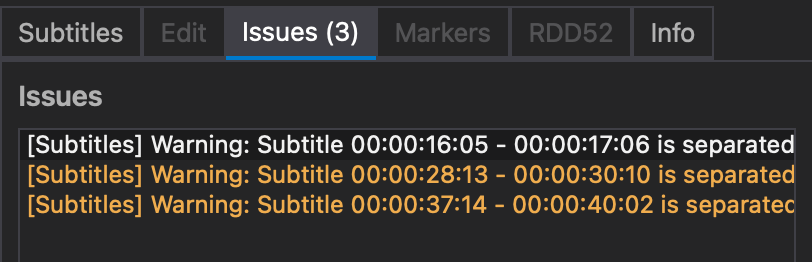
After import, review the package and timeline status symbols and open the Issues tab.
Some source-package problems may appear as warnings during import, even when the same issue would be reported as an error during a full DCP verification.
What you can do next
- Import subtitles.
- Duplicate the timeline and create a new version.
- Replace picture or main audio.
- Add HI, VI-N, Atmos, or Sign Language assets.
- Export an OV, VF, or Multi-CPL package.
- Verify the source DCP or the edited timeline.
Common problems
The DCP will not load
Confirm that you selected the root DCP folder and that it contains the expected package files. If the DCP is on a network volume or external drive, copy it to local storage and try again.
The timeline is locked
The DCP is encrypted and no usable key is available. Load a matching DCPKey, KDM, DKDM, digest, or other supported key file.
The timeline is offline
DaCaPo can no longer find one or more source files. Restore the original storage location or use Relink Package.