What you’ll learn
- How to add an HI track with + HI.
- Why HI is available only for supported Timelines.
- Why HI audio must be mono, single-channel audio.
- How to import the HI WAV as DCP PCM MXF.
- How to use SET so the HI track changes to ON.
- How to choose Add Audio to HI Track.
- How Source TC In, Start Reel, and End Reel control placement.
- How to review HI in Audio Config.
- How to export and verify the version.
Workflow overview
- Add the HI track with + HI.
- Import and convert the mono HI WAV file.
- Select the generated MXF in Imported Media.
- Click SET in the HI track header so it changes to ON.
- Choose Add Audio to HI Track.
- Set Source TC In, Start Reel, and End Reel.
- Confirm, review, export, and verify.
Before you begin
Select the Timeline that should receive the HI track and confirm that it matches the picture version used for the HI audio.
The HI source audio must be mono and contain a single audio channel.
What is HI audio?
HI stands for Hearing Impaired. It is an accessibility audio track intended for viewers who are deaf or hard of hearing.
The HI track usually contains a version of the programme audio optimized for intelligibility, with emphasis on dialogue and other important sounds.
In a DCP, HI is carried as a separate mono audio channel rather than being part of the MAIN soundtrack.
A compatible cinema accessibility system sends the HI audio to the individual listener, typically through a headset or hearing-assistance system.
Show Track Tools
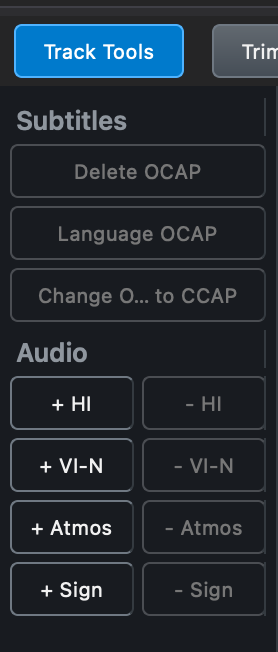
Click the Track Tools button above the Timeline if the panel is hidden.
Add the HI track
In the Audio section of Track Tools, click + HI.
The button is unavailable when the Timeline already contains an HI track or when the active DCP is IOP.
Import the HI WAV file
Open the Media tab and choose Import > Import WAV.
The HI WAV must be mono with a single audio channel.
Configure the edit rate, SMPTE wrapping, and Mono audio layout. DaCaPo validates the source and converts it to DCP PCM MXF.
Select the imported MXF
Select the generated audio MXF in Imported Media.
Set the HI track
Click SET in the HI track header.
The button changes to ON, making HI the selected audio track for the next placement operation.

Choose Add Audio to HI Track
Right-click the imported audio asset and choose Add Audio to HI Track.
DaCaPo opens the placement dialog for the selected HI track.
Set the source and reel range
The placement dialog lets you set:
- Source TC In
- Start Reel
- End Reel
Source TC In
Source TC In defines the timecode position in the source audio that should be used at the start of the placement.
Use it when the source HI file contains time before the section you want to place. For example, if the required audio starts later in the source file, set Source TC In to that position instead of using the beginning of the file.
Start Reel and End Reel
Start Reel and End Reel define which Timeline reels receive the HI audio.
Review the source position and reel range before continuing.
DaCaPo validates the placement
DaCaPo verifies that the selected MXF is compatible with the HI track and Timeline before placement.
Add HI to the Timeline
Confirm the placement. DaCaPo adds the asset to the HI track without affecting the MAIN track.
Monitor the HI track
The ON button indicates which audio track is monitored. Only one audio track can be monitored at a time.
Monitoring can be changed while playback is running.
Review Audio Config
Click Audio Config next to the meters button.
The HI track appears as a virtual channel together with MAIN audio and any other auxiliary tracks.
Click Done after reviewing the configuration. DaCaPo validates duplicate roles and output-channel conflicts before saving.
Review the HI version
- HI track presence.
- Start position and reel range.
- Duration and synchronization.
- Monitoring through the HI track.
- Audio Config.
- Issues tab.
Export and verify
Export as a VF when compatible picture and MAIN audio can be reused from the OV.
Enable Verify After Export and review the completed package.
Remove the HI track
Click - HI in Track Tools.
If media is present, DaCaPo asks for confirmation because the Timeline segments will also be removed.
Common problems
+ HI is unavailable
The Timeline already contains HI, or the active DCP is IOP.
The HI WAV is rejected
Confirm that the source audio is mono and contains a single audio channel. Also check the edit rate and SMPTE wrapping used when creating the DCP PCM MXF.
Add Audio to HI Track is unavailable
Add the HI track, then click SET so it changes to ON.
The audio starts at the wrong position
Check Source TC In. It determines which position in the source audio is used at the start of the placement.
The asset is rejected during placement
Check SMPTE wrapping, edit rate, duration, Source TC In, and reel range.
The wrong track is monitored
Use SET or ON in the HI track header.
Audio Config reports a conflict
Resolve duplicate roles or output-channel assignments.