What you’ll learn
- What a Multi-CPL DCP package is.
- How to choose which Timelines become CPLs.
- How to edit CPL names, annotation text, and language metadata.
- How DaCaPo reports warnings and errors for each Timeline.
- How RDD52 FFOC and LFOC marker checks are handled.
- How to configure the Multi-CPL OV export.
- How to verify the completed package.
What is a Multi-CPL package?
A Multi-CPL DCP contains multiple Composition Playlists in a single DCP folder. Each selected DaCaPo Timeline becomes a separate CPL.
Export Package creates a Multi-CPL Original Version (OV) package.
This is useful when delivering multiple language versions, accessibility versions, or other variants as a single package.
Before you begin
Organize the Timelines that should be exported together inside the same DaCaPo Package.
Review each Timeline and confirm that its picture, audio, subtitles, captions, markers, and metadata are correct.
If one of the selected Timelines contains an error, you must either fix the error or disable that Timeline from the current Package export.
Open Export Package
Select the Package containing the Timelines you want to deliver, then choose Export Package.
DaCaPo displays all exportable Timelines in the current Package.
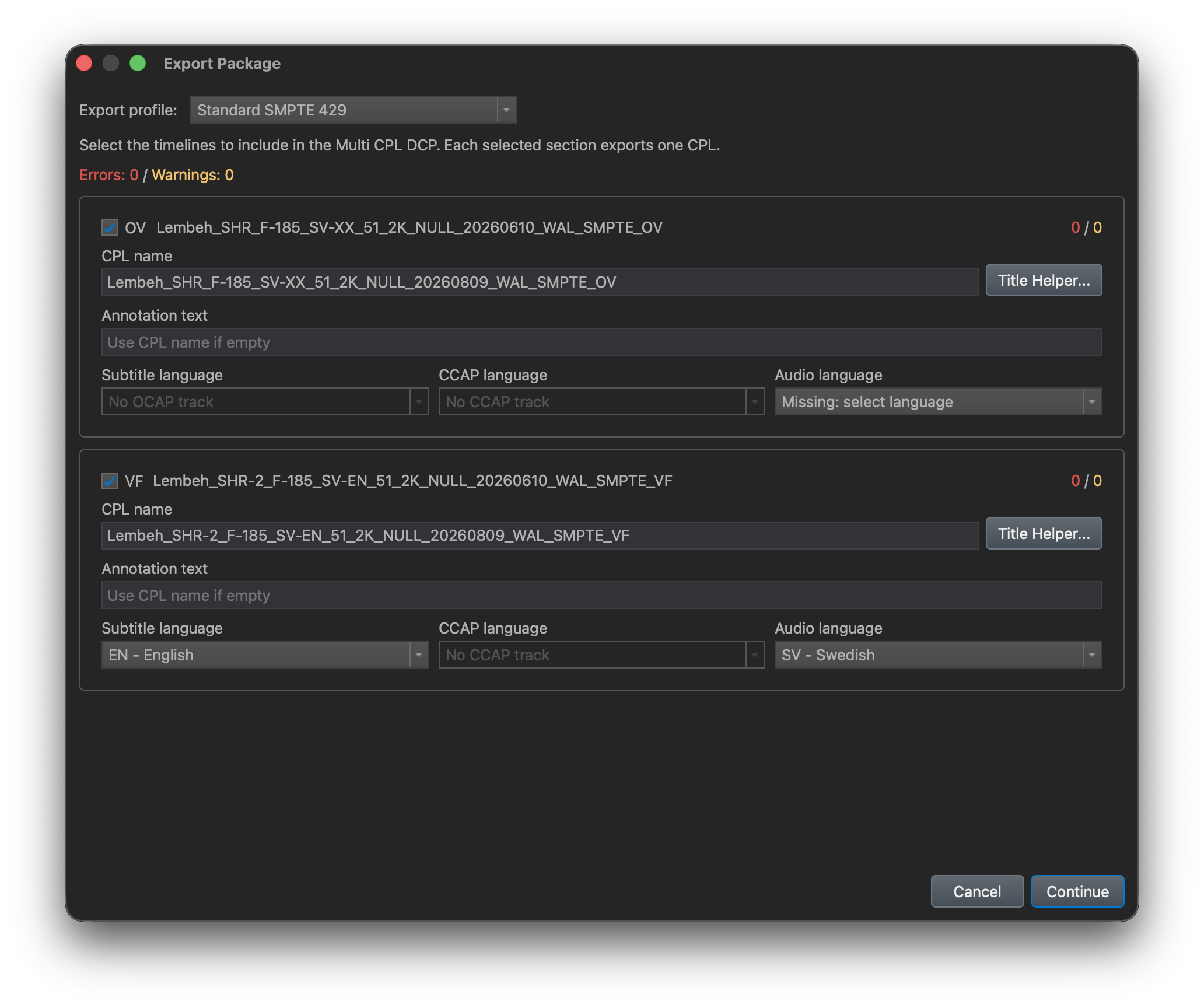
Select the Timelines to include
Enable each Timeline that should become a CPL in the exported package. Disable any Timeline that should not be included.
The finished DCP folder contains one CPL for every selected Timeline.
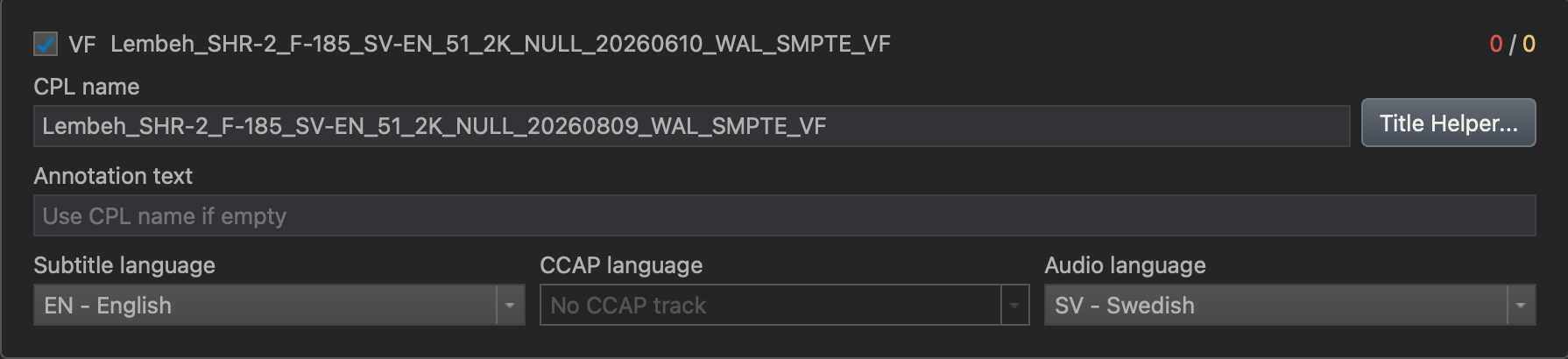
Review the composition metadata
For each Timeline, you can:
- Enable or disable export
- Edit the CPL name
- Edit the annotation text
- Set subtitle language
- Set closed-caption language
- Set audio language
Review the metadata for every selected Timeline before continuing.
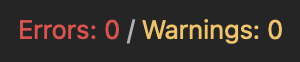
Review warnings and errors
DaCaPo displays a summary of the warnings and errors for each Timeline.
Review the warnings before export.
If one of the selected Timelines contains an error, fix the error or disable that Timeline from the current Package export.
RDD52 FFOC and LFOC markers
When the Profile is set to SMPTE RDD52, DaCaPo checks each selected Timeline for FFOC and LFOC markers.
If the required markers are missing, DaCaPo offers to create them automatically.
Continue to the standard export dialog
After selecting the Timelines to include and reviewing their metadata, warnings, and errors, click Continue.
DaCaPo opens the standard export dialog.
Configure the Multi-CPL package
Choose:
- Package name
- Output location
- Profile
- Encryption settings
- Verification options
The selected Profile determines the DCP format used for the exported package.
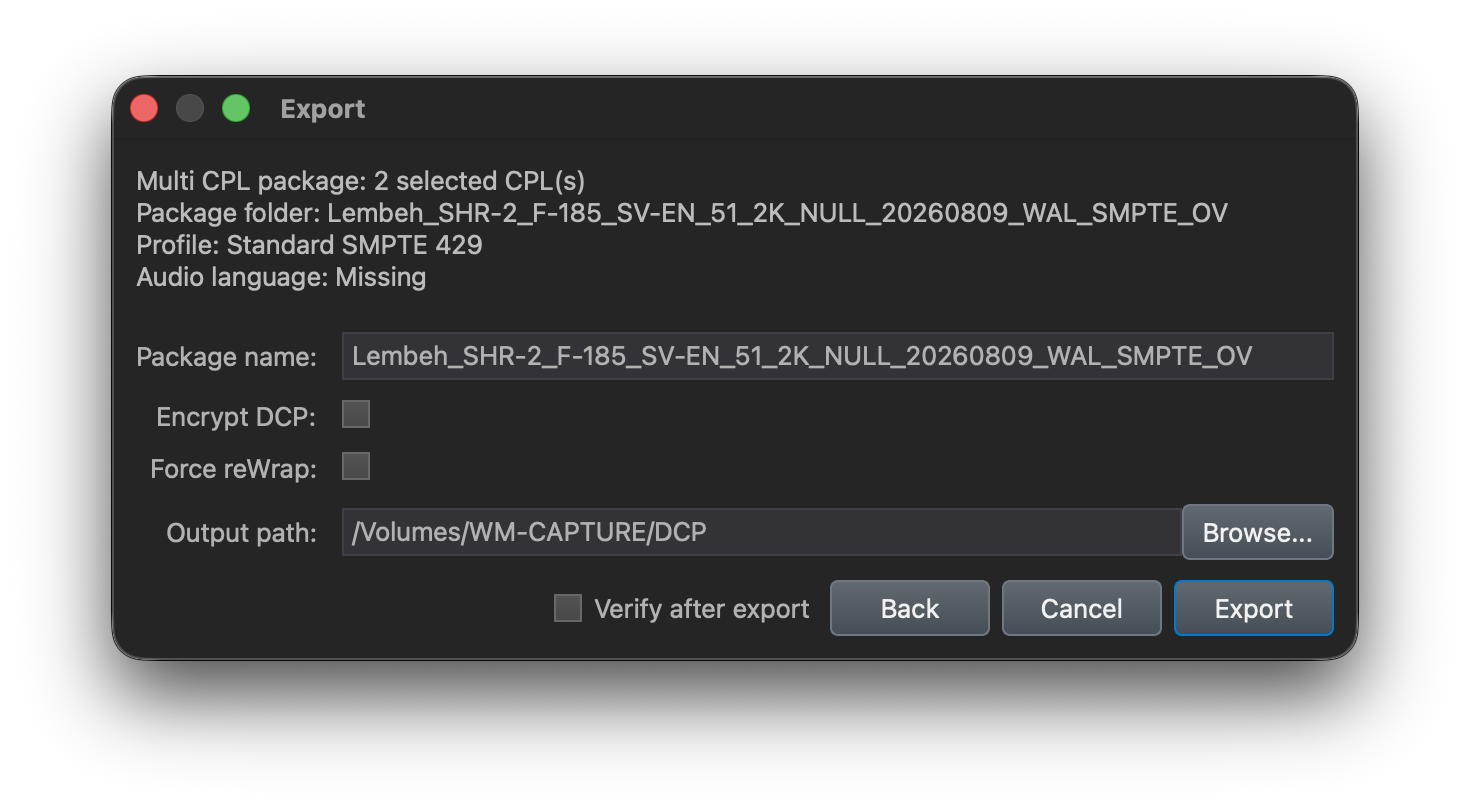
Force reWrap
Because Export Package creates an Original Version, Force reWrap can also be used when required.
Force reWrap recreates the picture, audio, and Atmos MXF files even when a profile rewrap is not otherwise required.
This creates freshly written MXF containers instead of reusing the original assets by copy or hard link.
Because the selected essence files must be written again, enabling Force reWrap increases export time and requires additional disk space.
Export the package
Start the export after reviewing the package settings.
DaCaPo creates a single DCP folder containing one CPL for each selected Timeline.
Verify the Multi-CPL package
Verify the completed DCP before delivery.
Common problems
A Timeline is not included in the export
Confirm that the Timeline is enabled in the Export Package window.
A selected Timeline contains errors
Fix the errors or disable that Timeline from the current Package export.
A language is incorrect in one CPL
Review the subtitle, closed-caption, and audio language fields for that Timeline before continuing.
RDD52 export reports missing markers
Use the option in the Export Package window to create the missing FFOC and LFOC markers automatically.
An unwanted CPL was included
Return to Export Package, disable the Timeline, and export the package again.