What you’ll learn
- The difference between DCP, Modified, Virtual, and Offline Timelines.
- How unexported changes affect a Timeline.
- What the package and Timeline status symbols mean.
- How DaCaPo indicates usable or unavailable decryption keys.
- What orange and red package or Timeline colours indicate.
- Where to find more detailed information about a status.
Timeline types
Every CPL loaded or created in DaCaPo is represented by a Timeline.
The Timeline type describes the relationship between the Timeline in the project and the DCP or media files stored on disk.
DCP Timeline
A DCP Timeline represents a DCP that exists on disk.
No changes have been made since the DCP was loaded or last exported. The Timeline directly represents the CPL and assets stored in the DCP package.
Modified Timeline
A Modified Timeline is based on a DCP on disk but contains changes that have not yet been exported.
Examples of changes that create a Modified Timeline include:
- Adding subtitles
- Replacing picture or audio
- Trimming or splitting reels
- Editing markers
- Changing metadata
The original DCP on disk is not changed. The edits exist only inside the DaCaPo project until the Timeline is exported.
Virtual Timeline
A Virtual Timeline exists only inside the DaCaPo project. It does not yet have a DCP package of its own on disk.
Virtual Timelines are commonly created by duplicating an existing Timeline or by creating a new version during an import workflow.
They are useful for preparing:
- Subtitle versions
- Accessibility versions
- Alternative audio versions
- Corrected releases
- Other OV or VF variants
A Virtual Timeline must be exported before it becomes a DCP package on disk.
Offline Timeline
An orange indicates that the Timeline is Offline.
A Timeline becomes Offline when DaCaPo can no longer find the source DCP or required media files used by that Timeline.
The Timeline remains visible in the project, but some operations are not available until the missing files have been restored or relinked.
To restore an Offline Timeline:
- Reconnect the original storage location.
- Restore any moved or missing DCP folders or media files.
- Use Relink Package when necessary.
Missing Media
A red indicates that required media cannot be found.
This can happen when a DCP or imported media has been moved, renamed, disconnected, or deleted after it was added to the DaCaPo project.
DaCaPo keeps the project references, but the affected content cannot be used until the source media becomes available again.
Typical causes include:
- An external drive is disconnected.
- A DCP folder has been moved or renamed.
- An MXF or other imported media file has been moved or deleted.
- A network volume is currently unavailable.
Restore the original storage location or use the appropriate relink function to reconnect the missing media.
Package status symbols
Package symbols summarize conditions that affect one or more Timelines inside the Package.
For example, a Package can show that it contains encrypted Timelines.
Moving the pointer over a status symbol displays additional information about its meaning.
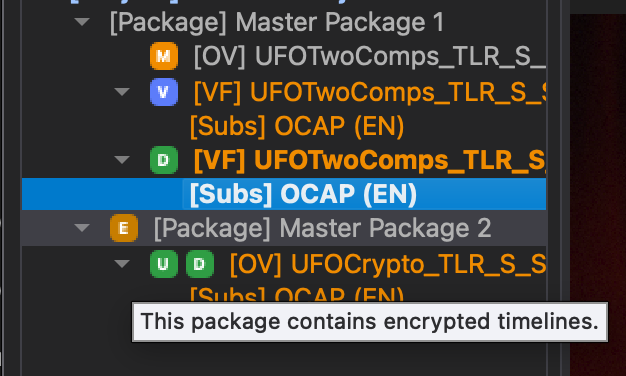
Encryption status symbols
When a Timeline is encrypted, an additional encryption symbol appears to the left of the Timeline-status symbol.
Usable key
The green symbol indicates that a usable decryption key is available. The Timeline is unlocked and can be viewed.
Locked
The red symbol indicates that the Timeline cannot currently be decrypted.
This can be because no usable key is available, or because the available KDM or DKDM is outside its permitted validity period.
Move the pointer over the encryption symbol for more information about the current key status.
Package colours
Package colours indicate whether the Package can access all required source content.
Red Package — Missing Media
The Package is offline because required DCP folders or media files cannot be found.
Orange Package — Offline Timeline
One or more Timelines in the Package are offline, while other Timelines are still available.
Timeline colours
Timeline colours indicate whether the Timeline contains issues that require attention.
Details can be found in the Issues tab of the Inspector Panel.
Orange Timeline
An orange Timeline contains one or more warnings.
Red Timeline
A red Timeline contains one or more errors.
Timelines with errors cannot be exported until the issues have been resolved.
Find more information about a status
Move the pointer over a symbol to display a tooltip explaining its meaning.
For more detailed Timeline, media, encryption, and package information, open the Info tab in the Inspector.
For warnings and errors , open the Issues tab.
Common questions
Why did my DCP Timeline become Modified?
A change was made inside the DaCaPo project. The source DCP on disk has not been changed. Export the Timeline to create a new DCP containing the changes.
Why does my duplicated Timeline show as Virtual?
The duplicate exists only inside the project and has not yet been exported to its own DCP folder.
Why is the Package orange?
At least one Timeline is offline, but other Timelines in the Package are still available.
Why is the Package red?
Required DCP folders or media files cannot be found, leaving the Package offline.
Why does my Timeline show ?
The Timeline contains one or more errors that must be resolved before export.
Why does my encrypted Timeline show ?
DaCaPo does not currently have a usable decryption key for the Timeline. Check the encryption status and validity period of the loaded KDM or DKDM.
Why can I see the Timeline but not play it?
The Timeline may be encrypted without a usable key, or required source media may be offline.