What you’ll learn
- How to enable Trim mode.
- How ripple trims affect following Timeline content.
- How roll trims change the boundary between two adjacent reels.
- How available source handles limit a trim.
- How the split-view Trim Preview helps with frame-accurate editing.
- How Shift snaps a trim point to the current playhead position.
- How subtitles can limit reel trimming.
- How to split a reel at the playhead.
- What DaCaPo updates automatically when a reel is split.
- How splitting can isolate a small section for replacement.
What does Trim change?
Trimming changes reel timing inside the DaCaPo Timeline.
The source media itself is not modified. DaCaPo only changes which part of the source is used and where the reel boundaries occur in the Timeline.
Enable Trim mode
Click the Trim button to enable reel editing mode.
While Trim mode is active, reel boundaries can be adjusted directly with the mouse.
Ripple Trim
Drag the beginning or end of a reel to perform a ripple trim.
The reel becomes shorter or longer, and all following Timeline content moves accordingly.
A reel can only be extended when additional source media is available beyond the current trim point.
If no more source media is available, the trim is limited by the available handles.
Roll Trim
Drag the boundary between two adjacent reels to perform a roll trim.
One reel becomes longer while the neighboring reel becomes shorter.
The overall Timeline duration remains unchanged.
Roll trims are limited by the available source media on both sides of the edit point. If either reel has no remaining handles, the boundary cannot be moved further in that direction.
Use the Trim Preview
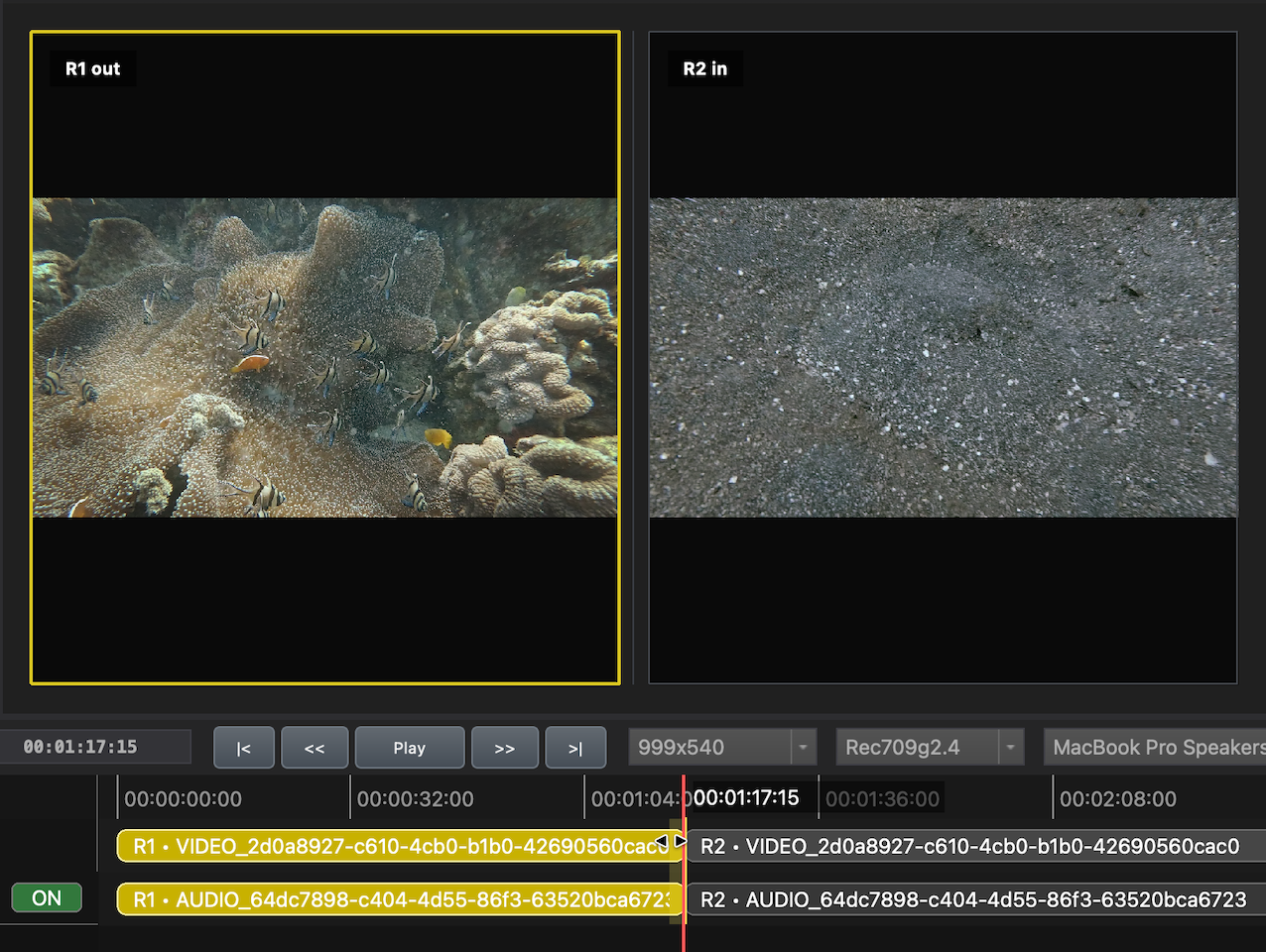
While trimming, DaCaPo displays a split-view preview of the edit point.
The preview shows the outgoing and incoming frames so you can judge the boundary while making frame-accurate adjustments.
Snap the trim to the playhead
Hold Shift while trimming to snap the edit point to the current playhead position.
This is useful when you have already positioned the playhead on the exact frame where the reel boundary should move.
Subtitle limitations
When subtitles are present, reel trimming is limited by subtitle timing.
A reel cannot be trimmed beyond subtitle cues that would become invalid as a result of the edit.
To trim further, first move or remove the affected subtitles.
Trim information
While trimming, DaCaPo displays information below the Timeline describing how the selected reel is being adjusted.
This includes the amount trimmed from the start or end of the reel.
Split a reel
The Split button becomes available when Trim mode is enabled.
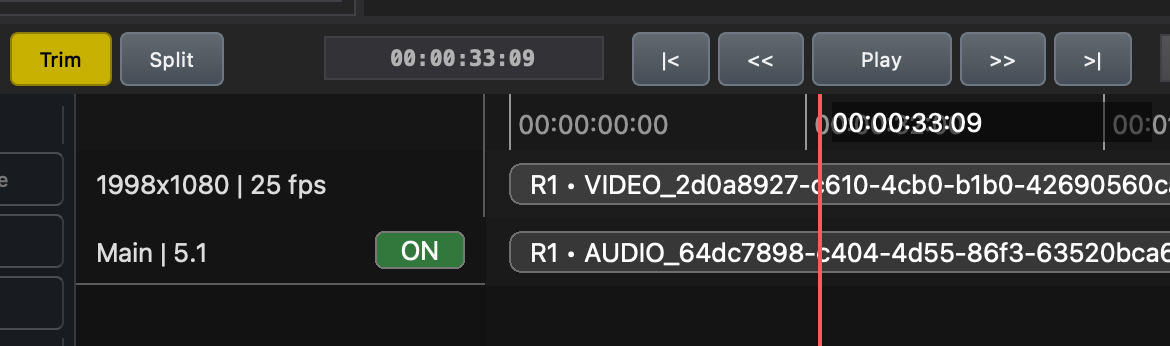
Position the playhead inside the reel where the split should occur, then click Split.
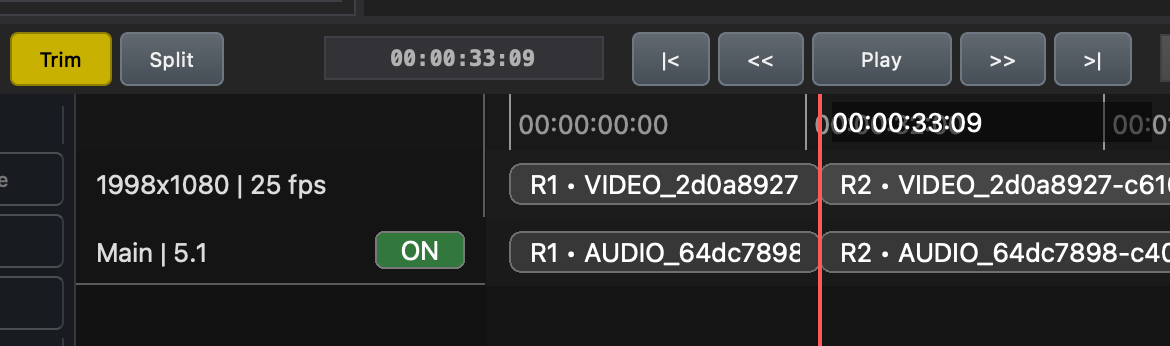
DaCaPo divides the current reel at the playhead position and creates two separate reels from the original reel.
What happens when a reel is split?
DaCaPo updates the Timeline automatically:
- Picture and audio are split at the selected frame.
- Reel durations are recalculated.
- Subtitle references are updated automatically.
- Marker positions are updated automatically.
The source media is not divided or modified. The split changes the reel structure inside the Timeline.
Use Split to replace a small section
Split is useful when only a small section of a DCP needs to be replaced.
Place the playhead immediately before the section and split the reel. Then place the playhead immediately after the section and split it again.
The section that needs to be updated is now its own reel and can be replaced without affecting the surrounding content.
Splitting can also be useful when creating new reel structures or preparing content for Version Files.
Common problems
A reel cannot be extended further
The source media has no additional handles beyond the current trim point.
A roll trim stops before the expected position
One of the adjacent reels has reached the limit of its available source media.
A trim is blocked even though source handles are available
Check whether subtitle cues are limiting the reel boundary. Move or remove the affected subtitles before trimming further.
Split is unavailable
Enable Trim mode and make sure the playhead is positioned inside a reel, not directly on an existing reel boundary.
The wrong frame was used for the trim
Position the playhead on the required frame and hold Shift while trimming to snap the edit point to it.