What you’ll learn
- What Export Preview is intended for.
- Which output resolutions are available.
- How picture, audio, and Open Captions are included.
- How the preview is colour-managed for standard displays.
- Why a preview file is not a replacement for a DCP.
What does Export Preview create?
Export Preview creates an H.264 MP4 video file that can be played without DCP playback software.
It is useful for:
- Client and producer approval.
- Subtitle and caption review.
- Internal quality control.
- Remote review.
- Checking a Timeline on a standard computer display.
Before you begin
Select the Timeline you want to export and review the active picture, audio, and subtitle configuration.
Open Captions are burned into the preview when present. Closed Captions are not burned into the picture.
Confirm that the Timeline is online and that all required source media is available.
Open Export Preview
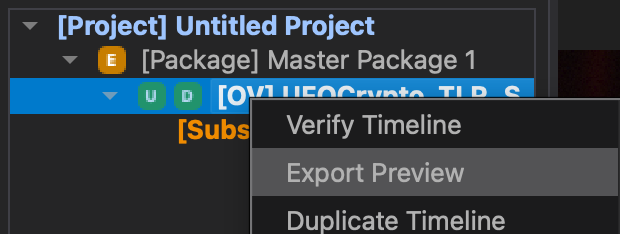
Select the Timeline, open its context menu, and choose Export Preview.
DaCaPo opens the preview export settings for the selected Timeline.
Choose the output resolution
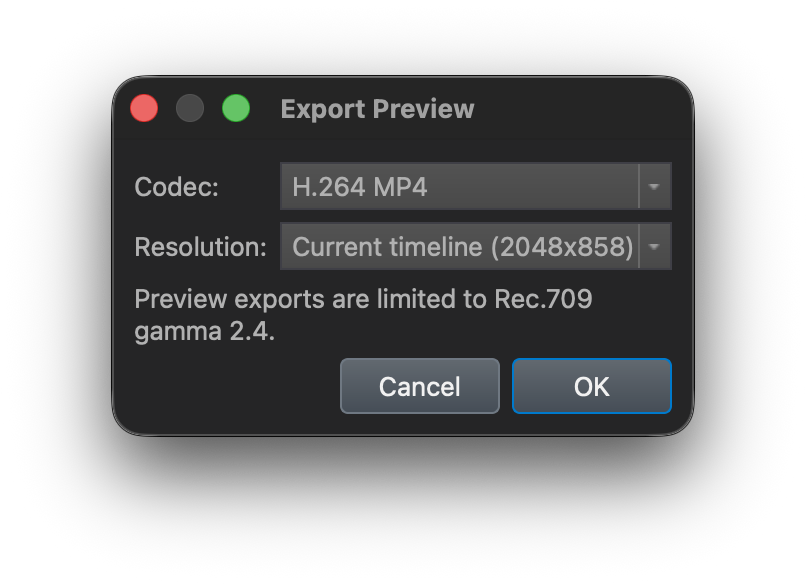
The available resolutions are:
- 960 × 540
- 1280 × 720
- 2K
- 4K
- Timeline Resolution
Smaller resolutions create lighter files that are easier to transfer. Higher resolutions provide a more detailed picture for close review.
Choose Timeline Resolution when the preview should match the active Timeline dimensions.
Picture and colour
Export Preview renders the Timeline picture into a standard review-video format.
Preview exports use Rec.709 gamma 2.4, making them suitable for review on standard computer and video displays.
Stereo audio
Timeline audio is mixed down to stereo for the exported preview.
Review the stereo file to confirm dialogue, music, effects, synchronization, and the presence of the intended main audio.
Burned-in Open Captions
When the Timeline contains Open Captions, they are burned into the preview picture.
This makes Export Preview useful for checking subtitle text, timing, position, line breaks, and styling without requiring DCP playback software.
Closed Captions are not burned into the picture.
Choose the destination
Select the folder and filename for the exported MP4 file.
Make sure the destination has enough free space and remains connected for the duration of the export.
Export the preview
Start the export after reviewing the resolution and destination.
DaCaPo renders the picture as H.264, mixes the Timeline audio to stereo, and burns in Open Captions when present.
Review the exported file
Open the completed MP4 in a standard video player.
Check:
- Picture and framing
- Running time
- Stereo audio
- Audio synchronization
- Burned-in Open Captions
- Subtitle timing and line breaks
- Playback on the intended review system
Common problems
The exported file will not play
Confirm that the file was exported completely and try opening the H.264 MP4 in another standard video player.
The file is too large
Choose a smaller output resolution.
The Open Captions are missing
Confirm that the Timeline contains an active Open Caption track. Closed Captions are not burned into the preview.
The audio is only stereo
Export Preview intentionally mixes the Timeline audio down to stereo. It is not intended to preserve the DCP multichannel layout.
The colour does not exactly match cinema projection
The preview is rendered as Rec.709 gamma 2.4 for standard displays. Use the DCP and a calibrated cinema-review environment for final projection evaluation.
The export is blocked
Confirm that the Timeline is online and that all required source media is available.